

The schedule is built on a single screen — Match Scheduling. The app takes the matches for it from the tournament structure by itself: group pairings and playoff cells appear in the unplanned list even if no matches have been created yet. You set the period and the playing day, tap Generate slots, and place the matches with the Auto button or by hand. Then Save plan — that is a draft and it does not touch the real matches — and Approve: only after that do matches with a date, field and time appear in the tournament.
Before you start
- Permission to edit the tournament. The scheduling item is only visible to people who can change the tournament.
- The structure. Stages, groups and the teams in them are already created — see "Groups + Cup and Plate playoffs". You do not need to create matches separately: the planner builds the round-robin pairings itself.
- Fields. In the tournament settings, Place and time section, Stadiums and Stadium fields are set. Without fields automatic placement is unavailable.
- Tournament dates. The scheduling period is filled in from them.
- Match duration in the tournament or stage rules. From it the app suggests a slot duration: the longest match plus 5 minutes.
This article is about team tournaments. For an individual one-on-one tournament the same menu item opens the earlier scheduling board, see "Individual tournament: one-on-one".
Step 1. Open scheduling
On the tournament page tap ⋮ — the Tournament management window opens. In the Structure group choose Match Scheduling.
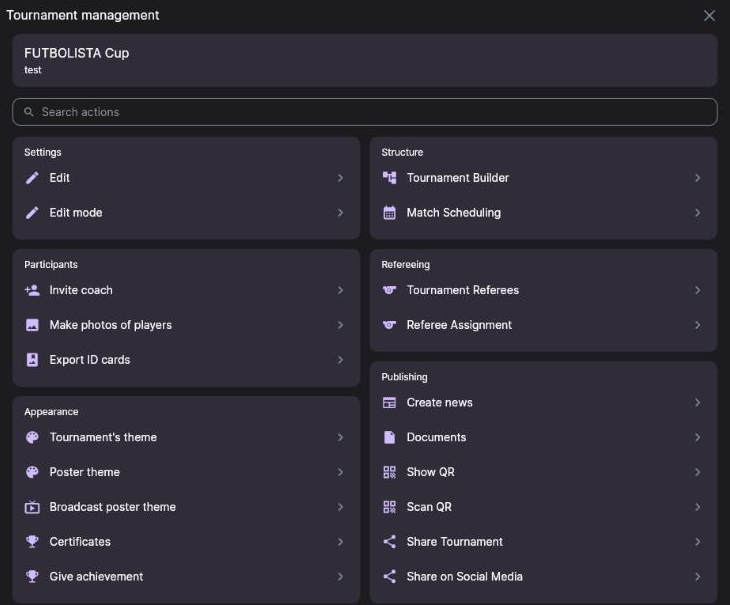
You always schedule the whole main event with all the tournaments inside it — no matter which of them you came in from. The fields and the time zone are taken from the main event.
While the data loads, captions appear one after another under the indicator: Tournament and stages, Teams and planned matches, Matches and groups, Fields and slots. Once the grid has appeared, the app checks Other tournaments on these fields in the background. If loading breaks off, tap Retry.
Step 2. Set the days and slots
A slot is a cell of the grid: one field at one time. While there are no slots, the screen says No schedule days instead of the grid, and all the matches sit in the Unplanned list.
-
Tap Generate slots (or Settings — it is the same Scheduling settings window).
-
Check the Tournament period — Start and End. It cannot be longer than 366 days.
-
Set Day start and Day end (8:00–20:00 by default), Slot duration, min and Buffer between matches, min. Under the duration the app suggests a recommended value.
-
Tick the Fields you are playing on and, if needed, add Breaks — a lunch or a ceremony, say.
-
In the What we schedule block leave Whole tournament or limit the goal to a number of matches per team — then the header shows progress towards that goal.
-
Tap Generate slots. The day tabs appear together with the message Slots generated: … days, … slots.
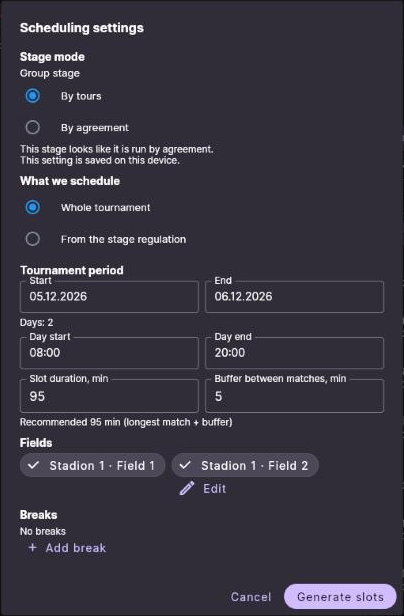
Slots are created for every day of the period. You cannot pick just Saturdays and Sundays here — the playing days are ticked later, in the Auto window, and the extra days simply stay empty.
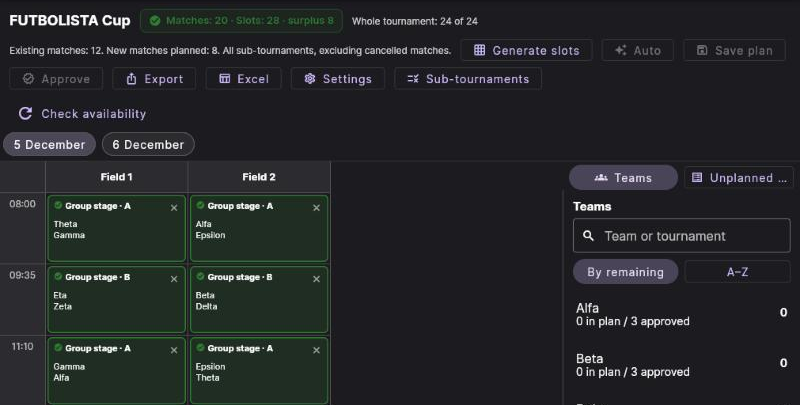
An indicator appears in the header: Matches: … · Slots: … · surplus … or … shortage …. If there is a shortage, widen the period or the playing day, add a field or shorten the slot.
If you have already moved or deleted individual slots, a new generation returns the grid to the settings. Matches you have already placed are not lost.
Step 3. Place the matches with Auto
Auto gives a good starting layout that is easy to tidy up by hand. In the window:
- Stages — which stages to place. It is easier to place the playoff after the group stage.
- Dates — tick only the playing days.
- Matches per day — a limit per day; empty means no limit. To have exactly one round per day, enter the number of matches in a round.
Tap Place. The placement keeps the order of the rounds, never puts a team into two matches at once, never schedules teams with a shared coach or from the same club at the same time, and tries to leave a team at least one slot of rest between its matches.
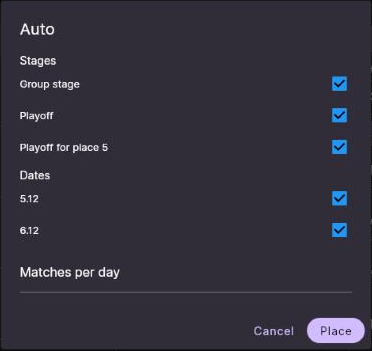
The result appears at the bottom: Auto-placement: placed …. If something did not fit, it reads …, couldn't place …, and each such match gets a reason: No available time slot, The field is occupied by another match, A team or related team’s matches overlap, The order of new rounds cannot be preserved, Teams are not determined, No permitted field.
If the tournaments inside have fields of their own
The Sub-tournaments button opens Sub-tournament fields and order. For each tournament inside the main event you can set Allowed fields (strict), Preferred fields (where possible) and the order with the Move up / Move down buttons. Both Auto and manual placement respect these rules.
Step 4. Adjust by hand
On a computer or tablet a match is dragged from the Unplanned list into a grid cell, or from cell to cell. The cross on the card takes the match off the schedule — it returns to the list. Tapping a card opens a window with the date, time and field; there you can also choose which time zone to type the time in — the grid always shows the time in the tournament's time zone.
On a phone tap an empty cell — a list of matches that can be placed there opens. Tapping a match in the grid opens the actions Move, Remove from schedule and Swap with….
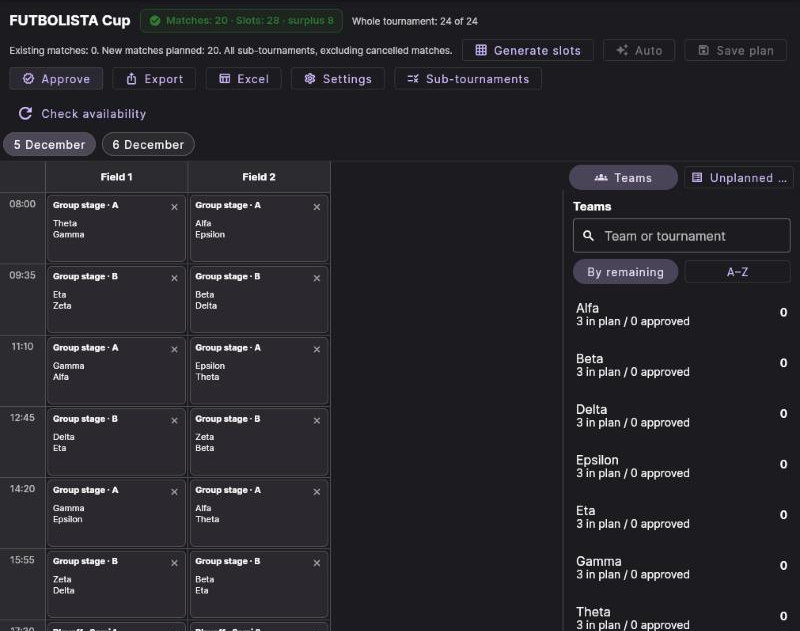
The Teams panel (in the shot above) shows, for each team, how many matches are in plan and how many are approved; tapping a team opens Opponent for … with the marks Already played …, Busy in this slot and Related team.
What is checked when you place a match
The app will not let you place a match if:
- there is already a match on that field at that time;
- the team has another match at that time — The team already has a match at this time.;
- a related team is playing at that time — one with a shared coach or from the same club;
- the field is not allowed for that sub-tournament — This field is not allowed for the sub-tournament.;
- the field is taken by a match of another tournament at the same venue.
Only Auto tries to leave a rest slot. When you place matches by hand the app forbids overlaps, but it will not stop you putting a team into two matches back to back. Check that yourself.
Step 5. Save the plan and approve
As you place matches, the Unsaved: … counter grows in the header.
- Save plan writes the placement as a draft. The tournament's real matches do not change. The message is Plan saved: ….
- Discard changes returns the placement to the last saved plan.
- Approve checks field availability, saves the plan and creates or updates the real matches: date, time, stadium and field. The message is Approved: … created, … updated.
The organiser setting Create matches as drafts also applies to the matches that Approve creates: they appear in the tournament as drafts, and participants see them only after Publish all drafts. If the setting is off, approved matches are ordinary matches right away.
An approved match can be moved. Its card gets a badge with the tooltip Plan is saved and waiting for Approve — tap Approve again and the real match is updated. Approval does not change matches that have already started.
Playoff matches whose opponents are not yet known (Winner …, League #…) can be put on the grid in advance and saved in the plan, but they can only be approved once the teams are known. Until then Approve skips them.
The finished schedule can be exported with the Export (CSV) and Excel buttons.
The plan is saved, but the session settings are not: the period, playing day, buffer, field selection, breaks, What we schedule and the Sub-tournaments rules have to be set again next time. Only the slot duration is remembered. If you leave with unsaved changes, the app asks: Stay, Leave without saving or Save.
Example: an amateur 5-a-side league with 14 teams
The structure is created by the tournament builder (see "Other tournament sizes"), and the schedule by this screen. Two common options:
Option A. A round-robin league
In the builder — the Single stage template, Participant count 14, Round count 1 or 2.
- One round-robin is 13 rounds of 7 matches, 91 matches in all. Two make 26 rounds and 182 matches; in the second round-robin home and away are swapped.
- The number of teams is even, so everybody plays every playing week.
- In Auto tick only the playing days under Dates and set Matches per day to 7 — then one round takes one playing day.
Option B. Two groups of 7 and a playoff
In the builder — the Group + playoff template, 14 participants, Groups in stage 1 2.
- Each group has 7 teams: 7 rounds of 3 matches, 21 matches per group.
- In every round one team of the group sits out. The schedule does not mark this bye in any way — the team simply is not among that round's matches. Warn the captains in advance.
- The template creates the group stage as a single round-robin. If you need a second one, open the group stage's settings and set Number of Rounds to 2: you get 14 rounds.
- If both groups play on the same day, set Matches per day in Auto to 6 — one round of each group.
- The playoff matches will be in the unplanned list with captions such as League #1 and Winner …. You can put them on the final dates in advance and approve them after the group stage.
Scheduling settings has a Stage mode: By tours or By agreement. In the second case pairs without a date are not shown as a list, and a Wishes and rent panel appears on the right. The chosen mode is remembered on this device only.
Troubleshooting
“No schedule days”
The slots have not been created yet. Open Settings, check the period and tap Generate slots.
The Auto button is inactive
There are no slots — the tooltip says Set a period and slots first — or the tournament has no fields. If the scheduling settings say The stadium has no fields, add fields in the tournament settings, Place and time section.
The unplanned list is empty
Check the structure: pairings only appear in groups that have at least two teams. If the teams have not been distributed into groups yet, start with the builder.
A match will not go into a cell
Read the message at the bottom of the screen — it says what the clash is with: a field, a team, a related team or another tournament. Pick another time or field.
“Other tournaments' field occupancy has not been checked.”
The field availability check did not go through — usually because of the connection. Tap Check availability. With the Place button you can still place a match without the check, but then a clash with another tournament at the same venue is on you.
“Approved … of …” or “Partially saved”
Some of the records did not reach the server and the unsaved part stayed in the draft. Tap the button again. Until the schedule has been re-read from the server, Discard changes is unavailable — leave and open scheduling again.
I removed a match from the schedule, but it kept its old date in the tournament
Remove from schedule takes the match out of the plan only; a match that has already been approved is not deleted from the tournament and does not lose its date. Move it to a new time on the grid and approve, or change the date in the match itself — see "Drafts, rescheduling and deleting matches".
The stage menu has “Matches creation” and “Match schedule creation”
These are the earlier tools. You do not need them for a team tournament: scheduling builds the pairings from the structure itself and picks up matches that already exist. Work in one place so you do not get confused.
Next step
The matches are approved — next are "Running a match" and "How the standings are calculated".
Still stuck? Write to support@nsgsoft.me and we will help you sort it out.