

In an individual tournament a participant is a player, not a team. Everything else works the way you already know: the same stages, the same playoff bracket, the same results screen. Two things differ — participants must be prepared before the bracket (step 1), and the result is easiest to record straight from the bracket cell, using the gear in its corner.
This is the format for challenges and trials: everyone plays for themselves, nobody keeps a score half the time, and all that matters is who goes through. Below is the full path, from creating the stage to a final with a name in it.
How it differs from a team event
| Team tournament | Individual | |
|---|---|---|
| Participant | A team with a squad | A player |
| Game format | 11×11, 8+1, 5×5 … | 1×1 |
| Match squad | Team match application | Not needed |
| Stages and bracket | The same: groups, playoff, match for 3rd place | |
Step 1. Prepare the participants
This is the step that is easy to skip — and then the list of opponents comes up empty. A match does not pick players out of the general database: it picks participant cards of this tournament, and those have to be created first.
- When creating the tournament, choose the Individual type — see Creating a tournament.
- Open the tournament → the Preview tab → the Participants sub-tab.
- Add participant, once per player.
Now turn those players into participant cards, one player each. These are what the match offers you later.
- The Stages tab. If there are no stages yet, tap + and save the first one: the app creates it as a group stage with game format 1×1. The playoff comes second — we create it in step 2.
- Open the group stage: the participants screen is reached from there.
- Turn on edit mode: the ⋮ menu in the tournament header → Edit mode.
- Tap Edit participants — Individual tournament teams opens.
- Tap Create 1 player teams automatically — the app makes one card per added player.
- Save.
Automatic creation fires when there are no cards yet; if some exist, the app asks you to delete them first. A single participant can also be added by hand — Add team, then Add player inside it.
Step 2. The playoff stage
Create the tournament the usual way (see Creating a tournament). Then add the stage that will hold the bracket.
- Open the tournament → the Stages tab.
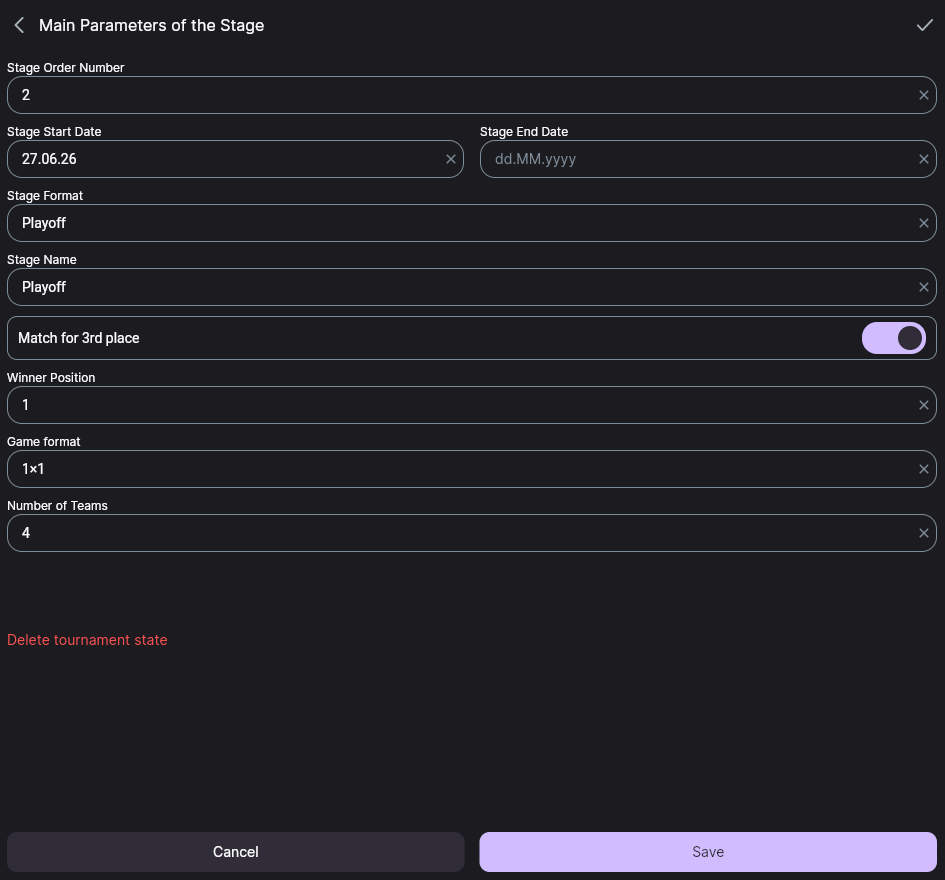
- Tap + in the header — Main Parameters of the Stage opens.
- Check Stage Format — it must be Playoff.
- Game format — 1×1.
- Number of Teams — how many participants enter the bracket: 4, 8, 16. This is how the app knows which round to start from.
- Turn on Match for 3rd place if you need one.
- Fill in both dates — the stage will not save without an end date — and tap Save.
A bracket is built on a power of two: 2, 4, 8, 16, 32. Enter anything in between and the app rounds up: 6 gives a bracket of 8, and two cells stay empty — you then either close them with a technical result or leave them as a bye.
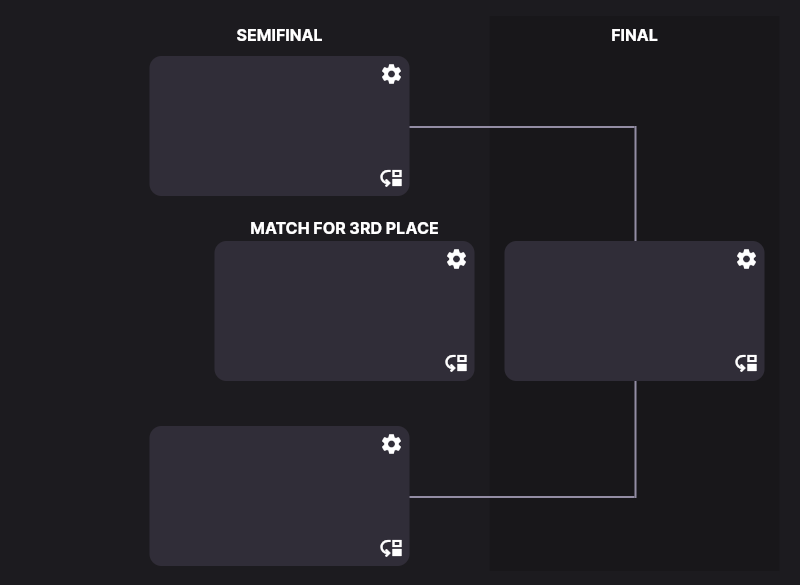
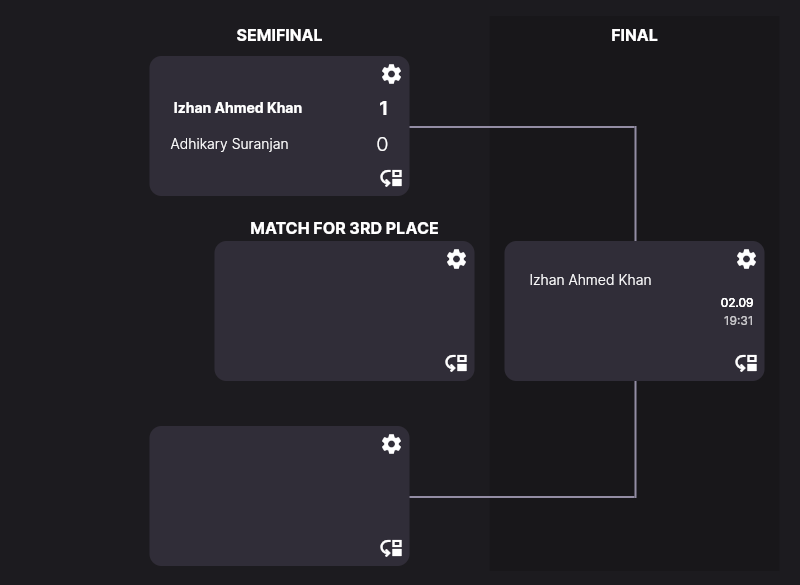
Once saved, the bracket appears on the Stages tab: semifinals, the match for 3rd place and the final. The cells are empty for now.
Step 3. Who plays whom
To work with the bracket, turn on edit mode: the ⋮ menu in the tournament header → Edit mode. The header changes to Tournament - Edit mode, and every cell gains a gear in its top-right corner and a transition-rules icon in the bottom-right one.
- Tap the gear on the cell you are seeding.
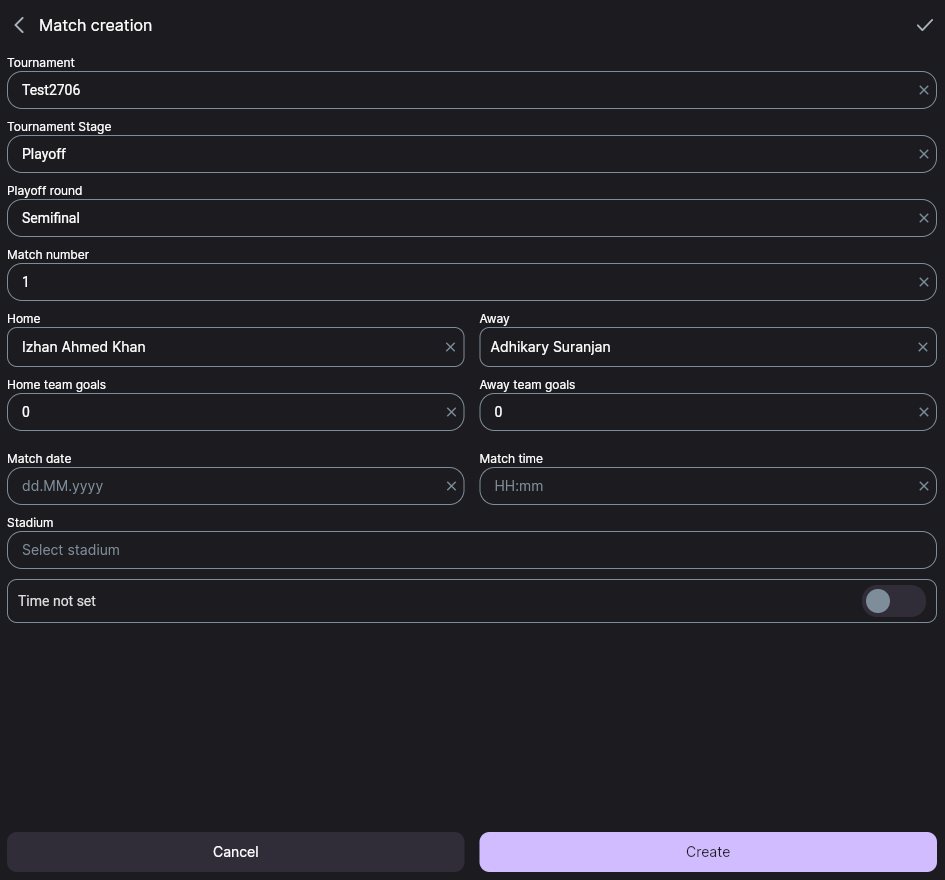
- In Match editing, choose Match settings — the full match card opens.
- Pick the participants in Select home team and Select away team: the list holds the players of this tournament.
- Check Playoff round and Match number — they are filled in from the cell, and the transition to the next round keys off exactly these two.
- Tap Create.
The bracket sometimes keeps showing the old state right after a match is created. Switch to a neighbouring stage and back — the participants will be there.
Step 4. Record the result
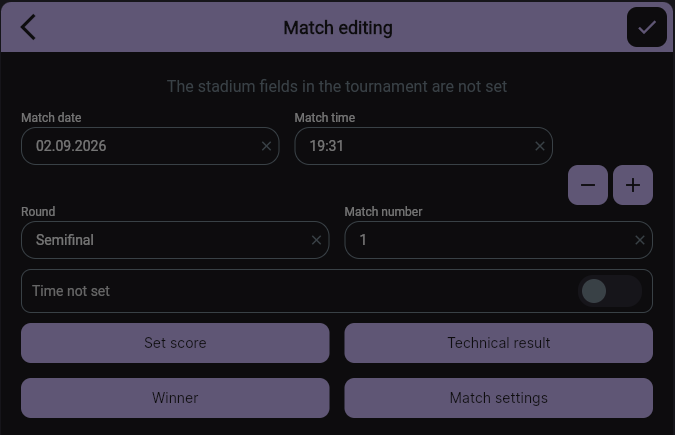
The gear again. Alongside date, time and round, Match editing offers four actions.
Option A. Winner in one tap
When nobody kept a score and all you need is who goes through:
- Tap Winner.
- Tap the participant who won.
- Save.
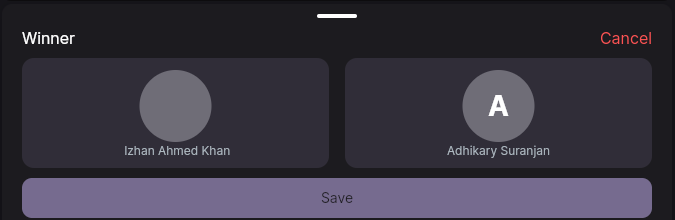
The app keeps the outcome as a score, so the cell will show 1:0 in favour of the participant you picked and the match becomes finished. If the real score matters to you, use option B instead.
Option B. Enter the score
- Tap Set score.
- Set the goals for each participant with the “−” and “+” buttons.
- Save.
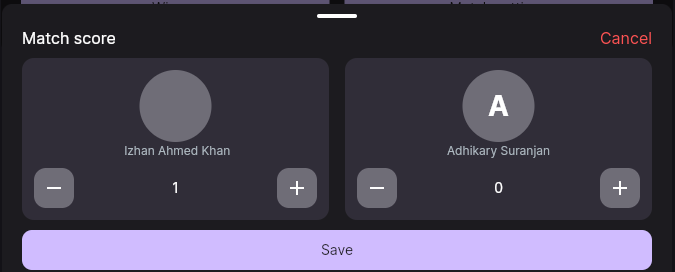
The third button, Technical result, covers a walkover: pick the participant who did not turn up and the app applies the technical defeat with the score set in the tournament.
Once saved, the cell shows the result and the winner's name turns bold.
Step 5. Moving on to the next round
Which winner lands in which cell is set by a transition rule. The rules icon sits in the bottom-right corner of the cell the participant should arrive in — the final, not the semifinal.
- Tap the transition-rules icon on the next-round cell.
- Under Home, pick the Stage — the same playoff stage.
- Round — where the participant comes from, for example Semifinal.
- Match number — the number of the source cell.
- Turn on Winner if the winner moves on. Left off, it means the loser — that is how the match for 3rd place is built.
- Same for the Away block if the second participant also arrives through the bracket.
- Confirm with the tick in the header.
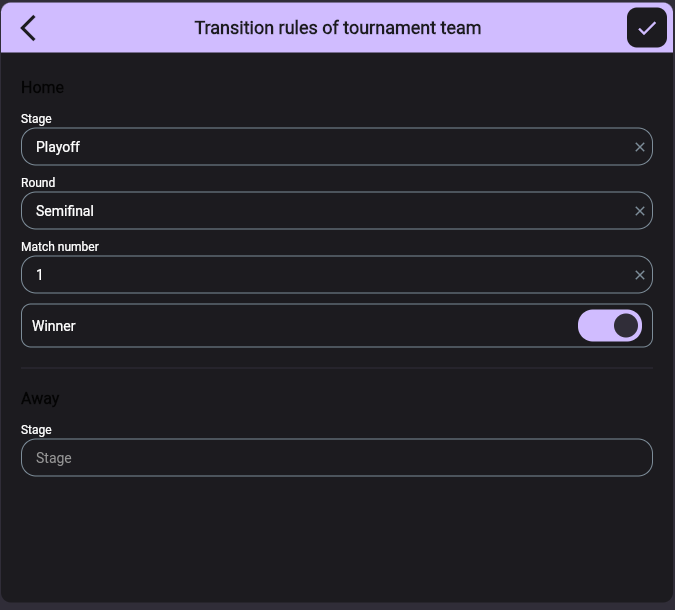
Saving the rule does not recalculate a match that has already been played. Open the source match and save its result once more — the same way you recorded it. The participant then appears in the next round.
Two-legged ties
When a tie is played over two matches, home and away, one bracket cell holds both. The gear first asks which of the two you are editing and only then opens the result dialog. Everything else works the same.
What to know in advance
- Cancel really cancels. Close the dialog with the back arrow and nothing is kept — not the score, not the date, not the pitch. Only Save and the tick in the dialog header commit a change.
- Changed your mind? Open the gear again and record a different outcome; the bracket follows the new result.
- The full match card. Anything the quick dialog does not cover — participants, stadium, status — lives under Match settings in that same dialog.
Troubleshooting
| Symptom | What to check |
|---|---|
| The Stages tab is empty, nowhere to tap Edit participants | A new tournament has no stages yet. Create the first one — it comes out as a group stage, and the button lives on it. |
| Home and Away pickers are empty | Step 1 was skipped: players were added to Participants, but participant cards were never created. |
| The bracket has more slots than participants | Number of Teams was rounded up to a power of two — that is by design. |
| No gear on the cell | Edit mode is off: the ⋮ menu → Edit mode. |
| The next round stayed empty | No transition rule for that cell, or the source match was not saved again after the rule was created. |
| The score you entered is gone | The dialog was closed with the back arrow instead of Save. |
| The participant list is empty | No players have been added to the tournament yet — see Creating a tournament. |
Next steps
Trials usually run the bracket and player rating together — see Rating participants. If a tie is possible in your bracket, enable the shootout: Draws and penalty shootouts. If a group stage comes before the playoff, how places are worked out is covered in How standings are calculated.
Still stuck? Write to support@nsgsoft.me — we will help.