

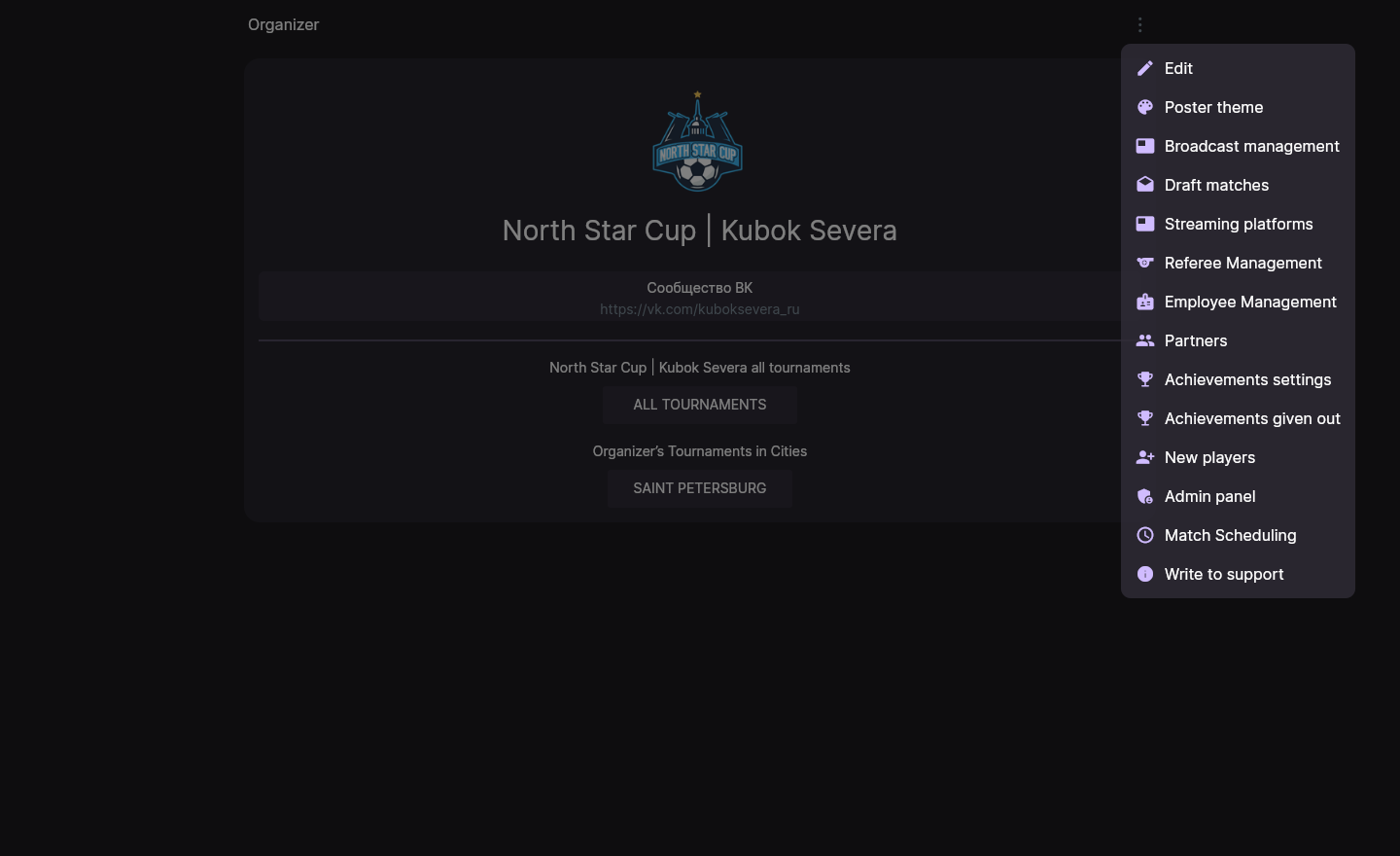
Access to matches comes from the organizer's referee list only (Company → Referee Management). The referee list inside a tournament is a roster for the scheduling grid; it grants nothing. There is no «invite referee» button either: a person gets access when they sign in with the same phone number or e-mail you typed into their card.
Two referee lists
Referees live in two different lists, and both are called Referees List. Telling them apart is what most support questions come down to.
| List | Where it opens | What it grants |
|---|---|---|
| Organizer's referees | Company page → menu → Referee Management | Access to matches in every tournament of that company |
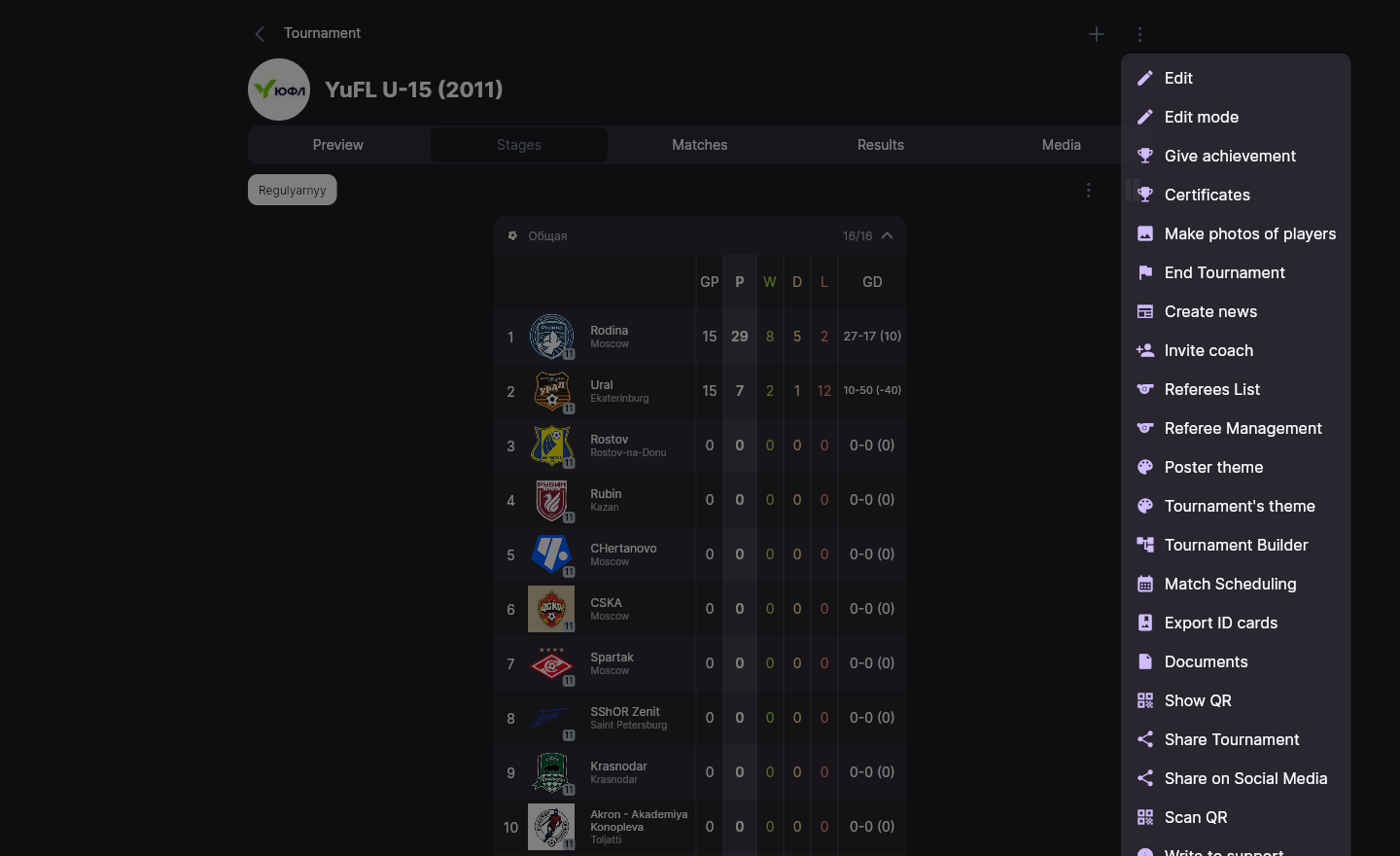
| Tournament referees | Tournament page → menu → Referees List | Only a place in that tournament's scheduling grid. Grants no access |
Referee Management means different things in different places. On the company page it opens the organizer's referee list — the one that grants access. On a tournament page the very same label opens the scheduling grid instead, and the tournament's own roster is called Referees List there.
The practical consequence: a referee added inside a tournament only has no access to matches, and it will not appear on its own. To let someone edit matches, they must be in the organizer's list.
Adding a referee
A referee card is created once per company and works across all of its tournaments.
-
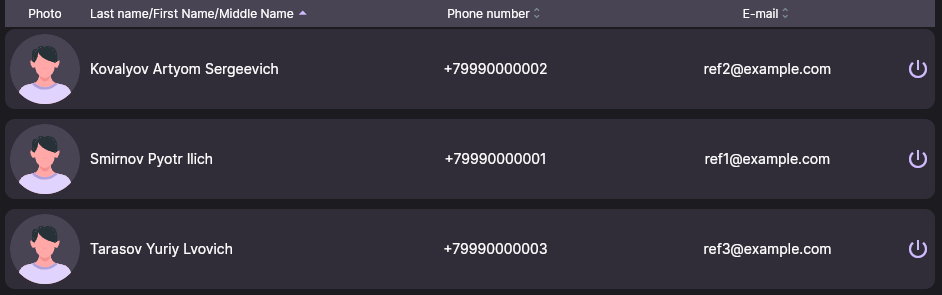
Open your company page and pick Referee Management from the menu. The Referees List opens.
-
Press + in the top-right corner — the New Referee card opens.
-
Fill in the last name, first name, middle name and — this part matters — the phone number and/or e-mail. A photo is optional.
-
Save. The referee appears in the list and is enabled straight away; there is nothing to activate.
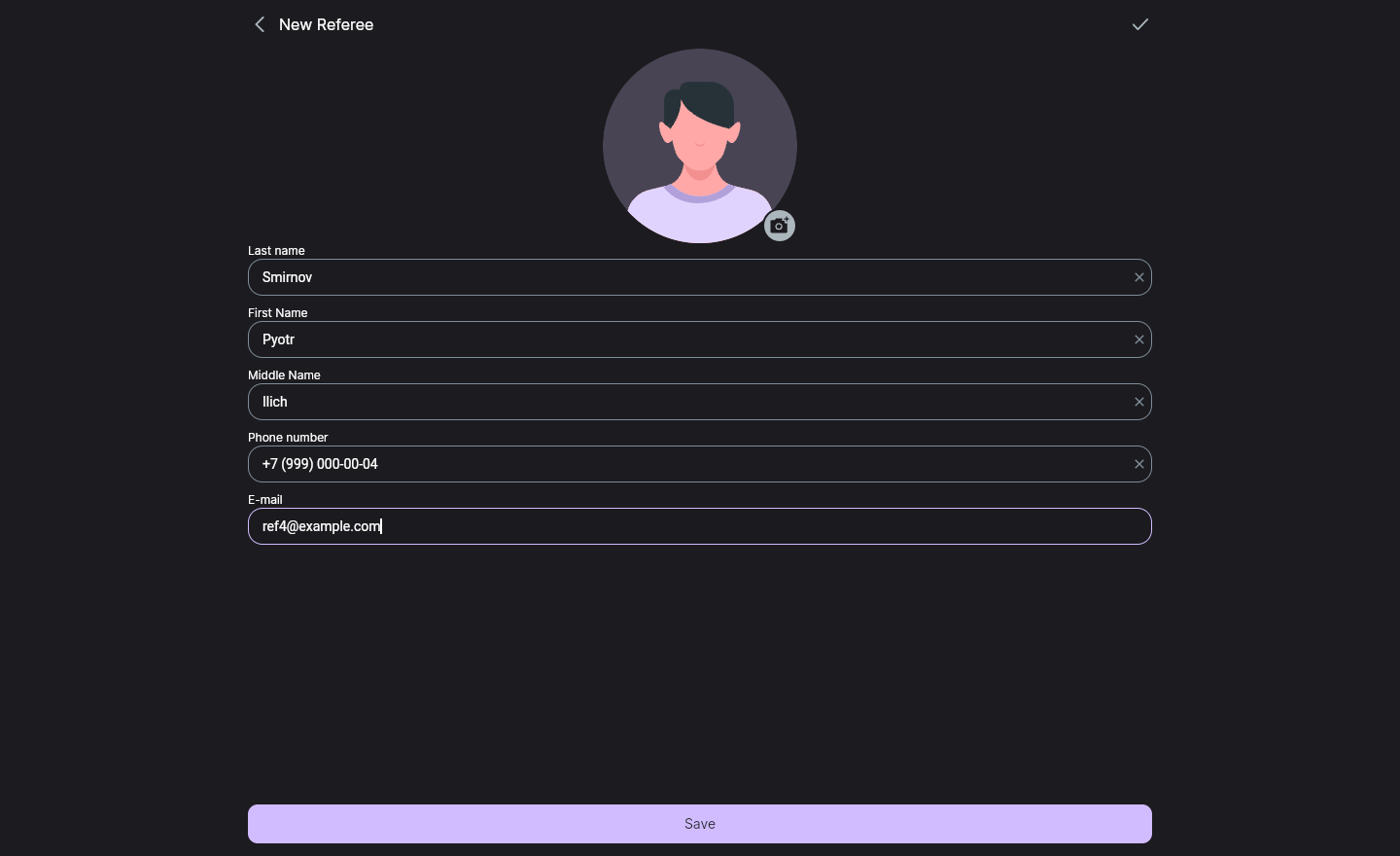
They are what ties the card to a real person. A typo in the number, or a number the referee never signs in with, leaves you with an empty shell: the card is in the list, but the person gets nothing. Enter the phone and e-mail they actually use to sign in.
How a referee gets access
There is no «grant access» procedure — no invitation link, no confirmation button. The link forms by itself:
-
You put a phone number and an e-mail into the referee card.
-
The person signs in with that phone or that e-mail — however they normally sign in.
-
The system finds the card matching the phone number or e-mail on their account, and from that moment treats them as a referee of your company.
Neither of you has to press anything. If access does not appear, it is almost always a phone or e-mail mismatch — see Troubleshooting.
What the referee sees
The referee signs in as usual and opens My dashboard in their profile. If their profile type is set to Referee, the My appointed matches screen opens — their matches, grouped by venue and pitch.
If the person has not set their type to Referee, My dashboard opens the ordinary player screen instead. This does not affect permissions at all: they still have access to matches, they just miss the convenient schedule. The profile type is theirs to change — you cannot set it for them.
Only matches the referee is appointed to in the scheduling grid reach that schedule. Matches they can access but are not appointed to simply do not show up there — they find those through the tournament's ordinary match list.
Which matches the access covers
An accredited referee can see and edit matches in every tournament of your company — not just the ones they were appointed to. But the access is not permanent: it follows the time and the status of the match.
| State of the match | Referee can edit |
|---|---|
| Not started, kick-off time still ahead | No |
| Not started, but kick-off time has passed | Yes |
| In play, half-time, extra time, penalty shootout | Yes |
| Finished | No |
An appointment does not affect permissions. It only puts the match into the referee's schedule so they find it faster. The reverse holds too: removing an appointment does not close access. The one control that really closes access is the on/off button.
Which gives the practical rule for a match day: until a match is finished, any accredited referee of yours can run it. That is what makes the swaps below possible without an administrator.
Appointments and the grid
The grid opens from the tournament page: menu → Referee Management. It is a match-day board — venues and pitches, times, matches — and the referees you lay out across them.
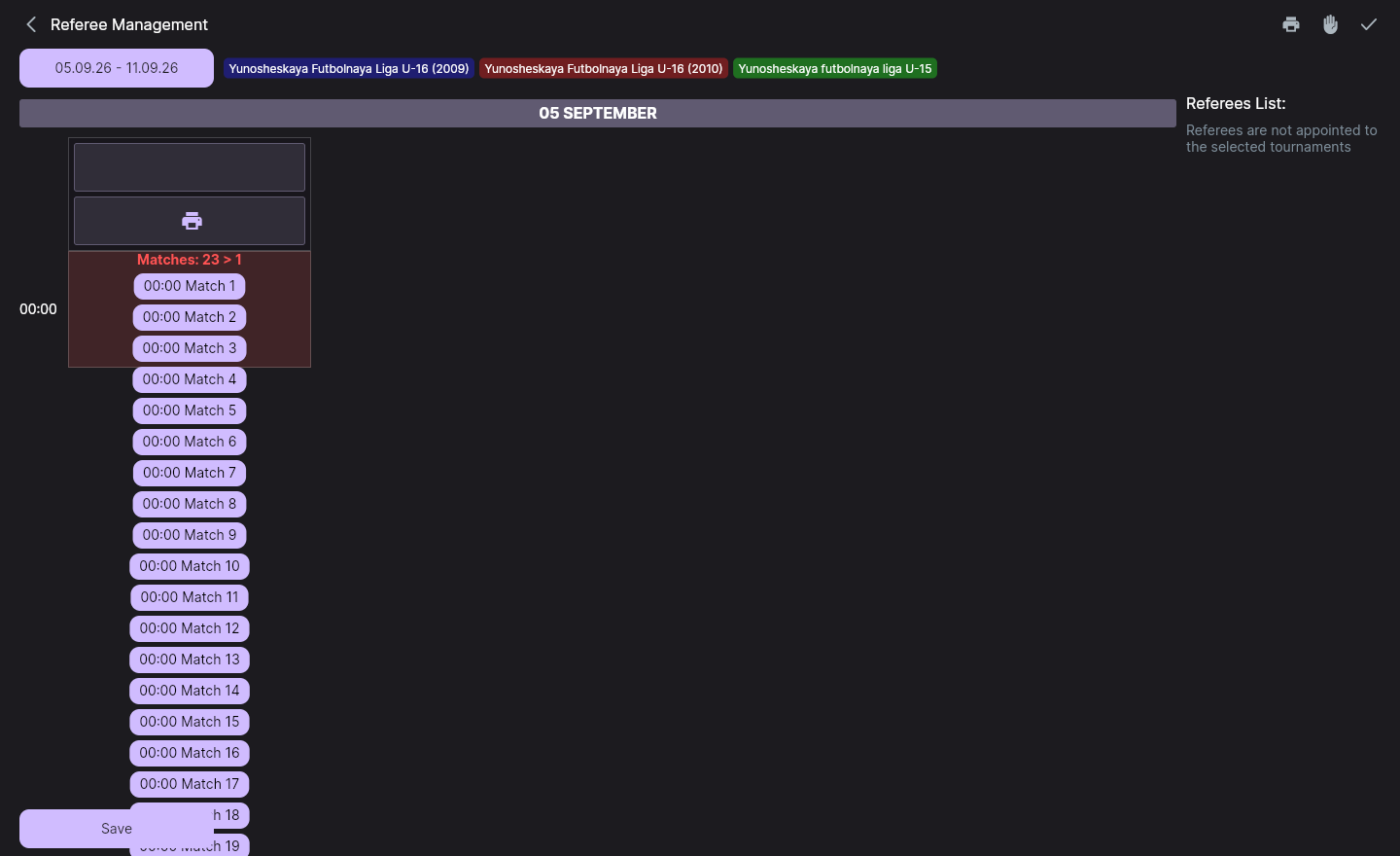
The grid draws referees from both lists — the organizer's and the tournament's — minus the ones that are switched off.
There is no limit. The same referee can be appointed to as many matches as you like, including ones running at the same time on different pitches: the app will not stop you and will not warn you. Keeping the schedule realistic is on you.
The referees of one particular match are edited separately, in Match Settings: there you add a referee from the list, change their role (Change role) or remove them from the match (Delete).
Swapping a referee mid-day
The three situations that come up most often, and what happens technically in each.
The referees decide to swap pitches
Technically you need to do nothing at all: accredited referees share access to matches, so each of them will open the match they are actually running. Fix the grid only so that the referees' schedules do not drift away from reality.
A referee clashes with a coach, so someone else takes the second match
It is enough that another referee opens and runs that second match — there is no «this match is not yours» lock. If you want the swap to show up in the record, change the referees in Match Settings.
Force majeure: the referee is pulled away and an administrator takes over
A company administrator already has access to all of its matches — there is no need to enrol themselves as a referee in order to run one.
The referee on/off button
At the right of every row in a referee list there is a round on/off button. It shows a state, not an action: bright means the referee is in the squad, dim (with the whole row faded) means switched off.
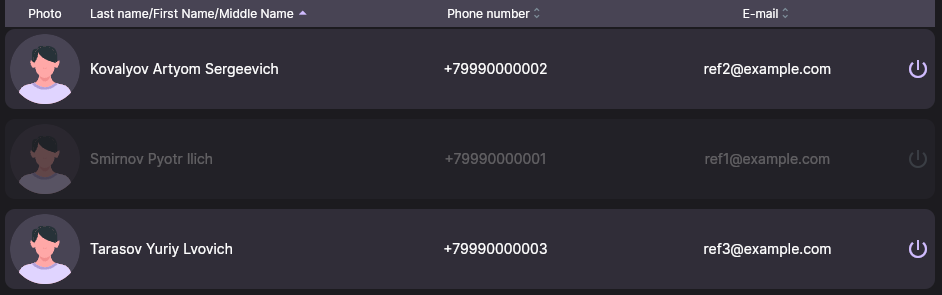
There is no confirmation and no Save button. In the organizer's list a switched-off referee immediately stops counting as a referee of your company: they lose access to matches and disappear from the scheduling grid. Switching them back on is the same press, and access returns just as instantly. For contrast: deleting a referee does ask for confirmation, while switching one off does not — even though it takes their access away just the same.
The tournament list has the same button, but it carries less weight there: that list grants no permissions, so switching someone off only removes them from the grid.
The button is handy when a referee is away for a season or has stopped working with you: the card does not have to be deleted and the history of appointments survives.
Troubleshooting
Saving a referee fails with «not authorized to write»
This is not about the referee — it is about your own account. To add a referee the app saves the company or the tournament, and that needs organizer permissions: your account must be verified, or listed under Employee Management for that company — with the same phone number you sign in with, and not switched off. With neither of those, the write is rejected. This is not something you can fix yourself: write to support@nsgsoft.me to get the account verified.
The referee signed in but sees no matches
Check, in this order:
-
Are they in the organizer's referee list, and not just the tournament's? The tournament list grants nothing.
-
Do the phone and e-mail on the card match the ones they sign in with? Either one matching is enough.
-
Is their button switched on — is the row not faded?
-
Has the kick-off time arrived? Before it, even an accredited referee has no access.
There are matches, but the schedule is empty
The My appointed matches screen only shows matches the referee is appointed to in the grid. With no appointments the screen is empty — even though access to the matches is there. Also check that their profile type is set to Referee: otherwise My dashboard opens the player screen instead of the referee one.
A referee vanished from the grid
Almost certainly the on/off button was pressed — either in the organizer's list or in the tournament's. Switched-off referees do not reach the grid.
Next steps
What a referee actually does with a match once they have access is covered in «Running a match».
Something not working? Write to support@nsgsoft.me — we will help you sort it out.