
The decision that matters is made right at the start — the match management mode. Everything else follows from it: whether the match can have events at all, whether you need a timer, and what can still be fixed later. Score only is the simplest, but events are impossible in it — and switching away later costs you the score.
Choose the management mode
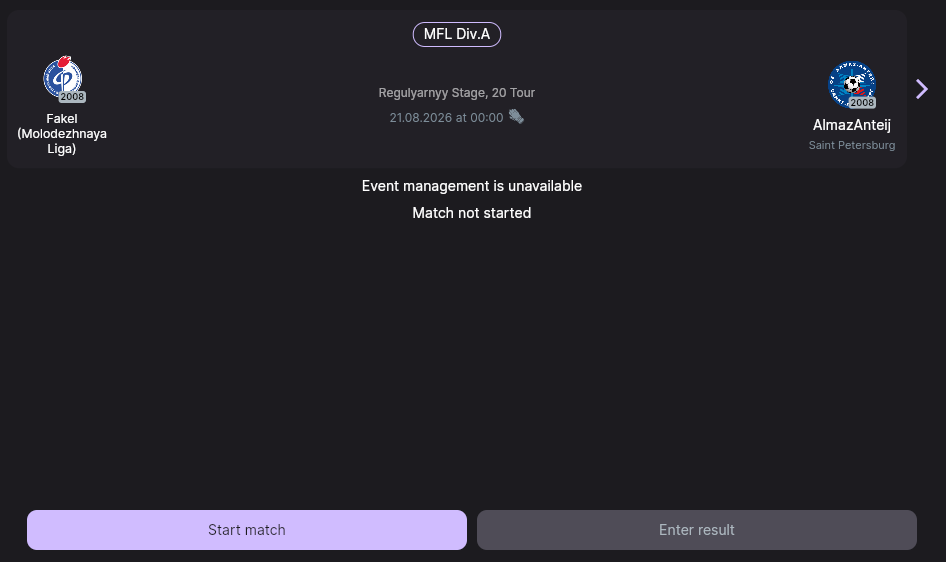
A match that has not started yet has two buttons: Start match and Enter result. That choice is effectively the choice of mode.
| Mode | When it fits | Events |
|---|---|---|
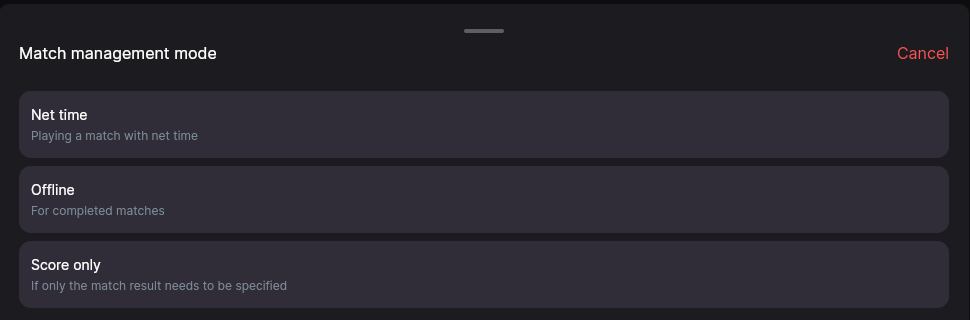
| Score only | The match has been played, you just need the result on record | No — by design |
| Offline | The match has been played and you have the paper protocol — enter the events after the fact | Yes |
| Net time | You run the match live, with a timer | Yes, in real time |
Start match switches the match into net time and starts it right away. Enter result opens a choice between Offline and Score only. To change the mode later, use the ⋮ menu → Change match mode.
A match in Score only has no events and cannot have any: the protocol tab is hidden and statistics entry is unavailable. To start entering events the match has to be switched to Offline — and the app will warn you honestly that the current score will be lost. The other direction is restricted too: you cannot switch to «Score only» once events exist until you delete them.
Line-ups
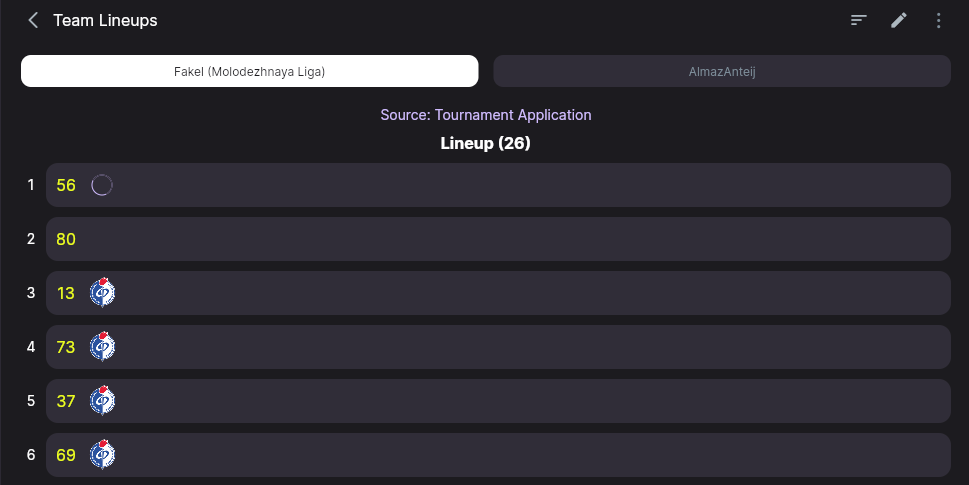
The line-up opens from the match ⋮ menu → Match Application. The teams are switched at the top; below is the list of players with their numbers, where the line-up came from (usually the tournament application) and how many players are in it. To change anything, turn on editing with the pencil — the organizer and the team's own coach both have access.
In editing mode players are split into Starting line-up and Substitutes — a player moves between them by tapping the card, and the same place is where you set the number for this match. Goalkeepers have a tab of their own.
Neither a minimum number of players nor the presence of a goalkeeper — a match can be started with an empty line-up. The No goalkeeper marker in the match list is a hint and a filter, not a block. If complete line-ups matter to you, keep an eye on them yourself: the app will not catch this for you.
The flow of the match
The match walks through a sequence of states, and each one puts its own button at the bottom of the screen:
| State | What to press next |
|---|---|
| Not started | Start match or Enter result |
| In progress | End period. In Net time this button appears on its own only once the period time has run out — to close a period early see «How to switch the period» |
| Break | Start period, and after the last one — End match |
| Overtime, Penalties | Appear only when the match rules provide for them |
| Over | — |
How to switch the period in «Net time»
In Net time the End period button appears next to Start/Stop on its own — but only once the period length set in the match rules has run out. If you need to close the period earlier — or if the match rules carry no period length at all, in which case the button never appears — the period controls live in a separate panel. It opens by holding the green time.
-
Press Stop. While the stopwatch is running, holding the time does not open anything — that guards against a stray press during play.
-
Press the green time and keep holding for about a second. On a phone that is a long press, on a computer a held-down left mouse button: the gesture is the same in the app and in the browser.
-
A panel opens above the timer: End period N, the time adjustment fields, and the ↶ button that undoes the last step.
-
Press End period N and confirm. The match moves to Break, and after the last period the app offers Match completion itself.
A touch icon sits next to the period number — that is what marks the time as carrying hidden actions. A short press switches nothing; it shows a hint with these two steps. On a computer the same hint appears on mouse hover, without pressing anything.
Doing this remotely from a computer works exactly as it does on the referee's phone. If the referee is running the match from their phone and you end the period from a computer, the change reaches them too. Agree in advance on who switches, so the period is not closed twice.
The stopwatch works independently of the states — the Start and Stop buttons. A wrong tap can be undone: the app offers to revert the last step, along the lines of «Undo match start» or «Undo end of period».
Ending the match is confirmed by a separate Match completion dialog, with Later and Confirm.
If some events have not reached the server yet, the finishing dialog says so and asks you to wait for the connection. This is not a formality: the same counter includes events the server has rejected. So if the warning stays up while your internet is fine, one of the events is most likely entered incorrectly. Find it and fix it before finishing.
Entering events
During the match, events are entered with per-team buttons: goal, penalty, yellow and red cards, shot on target, corner, key moment. Which buttons the operator actually sees is configured in advance in the match rules, in the Stat buttons kit block.
For most events the app asks you to pick a player, but many of them offer a Do not specify player button — handy when there is no time to work it out in the noise. There are three exceptions where a player is mandatory: substitution, penalty kick and a kick in the penalty shoot-out.
This one is not obvious: substitutions are not entered with a button but on the Protocol screen, with the Substitution ↑ and Substitution ↓ marks against particular players. The same screen is where assists, a goal from the spot, a missed penalty and an own goal are recorded.
The joystick
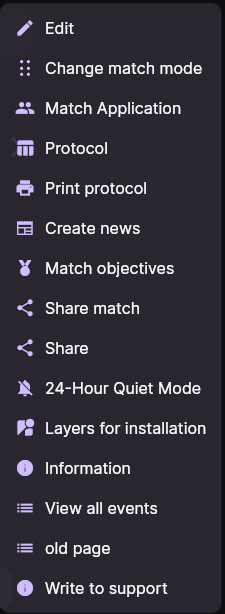
If a dedicated operator keeps the statistics, they will be better off in Stat input (joystick) mode — a landscape screen where one tap records an event for the team without asking about the player. For a dense flow of events that is noticeably faster. The item appears in the ⋮ menu of a match that is run with events: you will not find it on a match that has not started or one in «Score only».
Technical result
If a team does not turn up or is withdrawn, the match is recorded as a technical result. It is switched on with the Technical result toggle in the match settings, after which you pick the team that has been handed the forfeit.
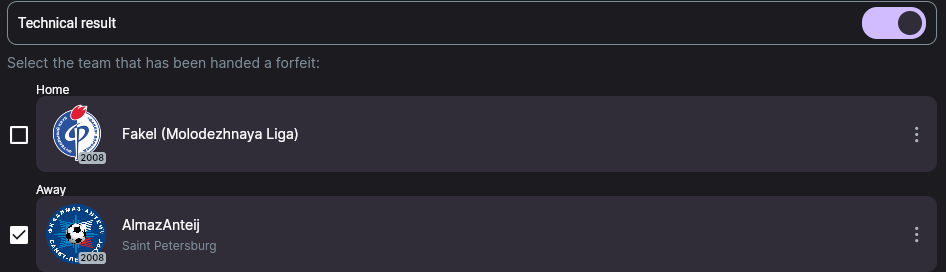
What happens next: the match is switched automatically to Score only and Over, and the score is taken from the score field in the tournament settings, labelled Technical result there as well. If it is left empty, 3:0 is used.
Once saved, the match is already finished, with a score, in «Score only» mode. You can put it back into normal management, but the events will have to be entered from scratch and the substituted score will be lost. Check that you have ticked the losing team before you press Save.
In cross-tables such a score is highlighted with colour, and in lists it gets a tech marker. In the playoffs, progression arrows are not drawn for technical results.
The result in the table
Once the match is finished the table updates by itself — there is nothing extra to press. The calculation runs on the server and takes seconds.
There is no separate «match processed» indicator in the app, so judge by the table itself: if the numbers have not moved a few seconds after the match was finished, use the recount button — it is described in «How the standings are calculated».
Troubleshooting
I cannot enter events — there is no protocol tab
The match is in Score only: it has no events by design. Switching to Offline brings events back, but zeroes the score you already entered.
The match will not switch to «Score only»
The match already has events. The app says outright that they have to be deleted first.
The finishing dialog complains about unsent events
Check the connection first. If the internet is fine and the warning does not go away, one of the events was probably rejected by the server; find the last one you entered and check that everything in it is filled in.
I cannot find where to make a substitution
Substitutions are not among the match buttons — they are on the protocol screen, as marks against players.
I started a match with an incomplete line-up
The app allows that — there are no line-up checks before kick-off. The line-up can be topped up after the start too, through Match Application.
Next steps
How results turn into places, and what happens when teams are level on points, is covered in «How the standings are calculated».
Still stuck? Write to support@nsgsoft.me and we will help you sort it out.