

Manual mode lives in the same Tournament Builder as the one-click wizard from the previous article — it isn't a separate tool, it's the next step. The wizard only works on an empty tournament, and it hands you straight into manual mode for anything you do afterward: adding a stage, changing advancement rules, or fine-tuning what the wizard already built.
Tournament Builder
Open it from the tournament card: the ⋮ menu → Tournament Builder. It's the same screen that built the structure with one click in the previous article — it just has two modes.
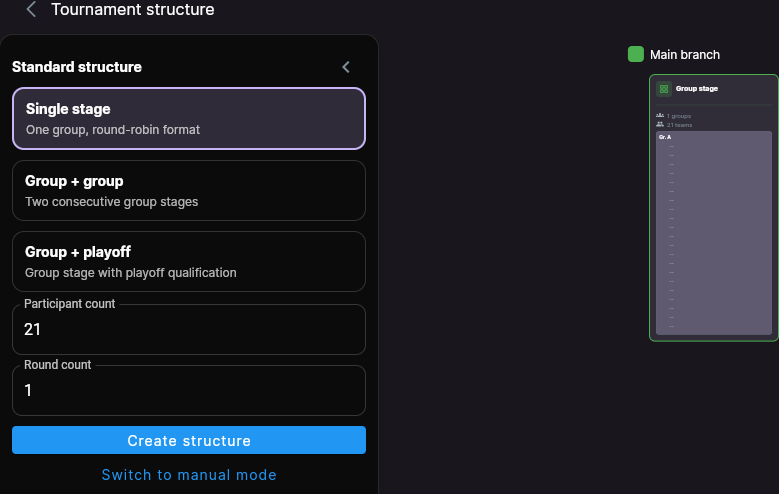
The wizard only works on an empty tournament structure — you can't run it a second time. Once a structure exists, even one the wizard built, any further change goes through manual mode.
When you need manual mode
The wizard saves time, but it's built for the simple case: every team starts from the same stage, and the structure is built once, on an empty tournament. You need manual mode as soon as any of that isn't true:
- Several group stages feed one shared final. Two independent groups send their winners into one combined final stage, say — the wizard only builds a single «groups → bracket» chain, so this has to be put together by hand.
- The line-up changes. A team drops out or joins after the structure is already built — the only way to fix that is by hand, without recreating the tournament.
- Not everyone starts from the same stage. Some teams enter later — seeded straight into the playoff, say — instead of playing every round from the start.
- You need non-standard advancement rules. Not just «1st and 2nd place from every group», but something of your own — the best third-placed teams across all groups, say.
- The structure needs to change after the tournament is already created. The group round is over, say, and it turns out you need one more intermediate stage that wasn't in the original plan.
Stage types
When you add a stage, the builder offers three types to choose from:
- Group stage — an ordinary table, round-robin within the group.
- Playoff — a knockout bracket.
- Preliminary — this type isn't documented yet. Don't pick it without an agreed set of rules.
Adding a stage
The first stage is added with the + button — it opens the Add stage dialog with the type picker.
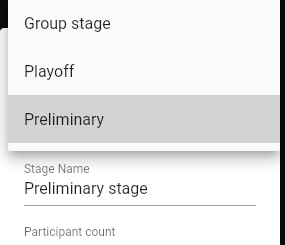
Every following stage is added from the stage right before it. If the previous stage is a group stage, one combined dialog opens — Stage creation + advancement rules: the new stage's type and who advances into it are configured together in one go, not separately.
Who joins a stage
The first stage, the one with no predecessor, is filled with teams by hand — from the tournament's own participant list, group by group. No later stage is filled that way: its teams come from the advancement rules of the stage before it (see below).
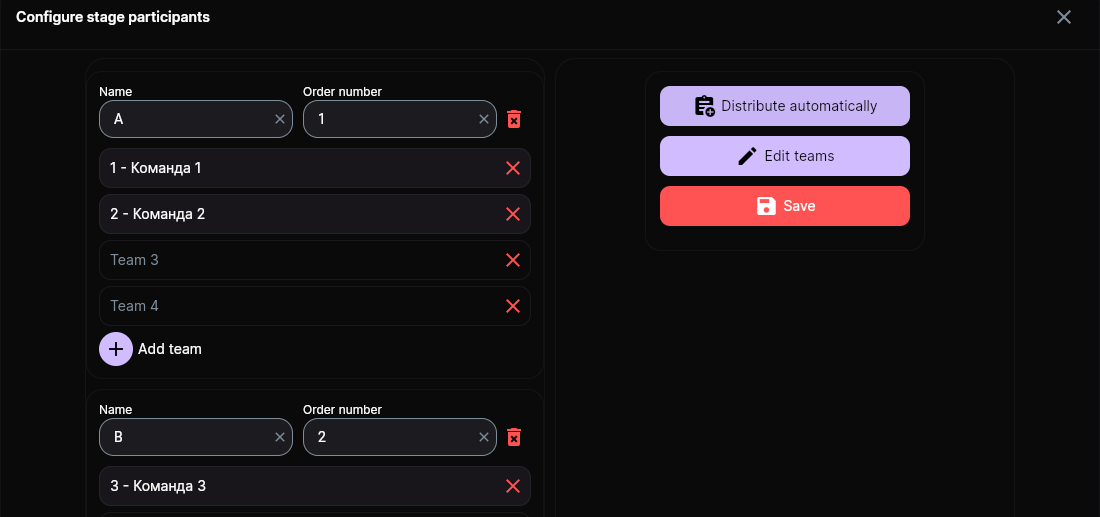
Manual team assignment currently only works for a group stage. If your tournament starts straight into a playoff or a preliminary stage, add a group stage before it — or assign participants some other way.
Advancement rules
You mark which places from each group advance — 1st and 2nd place of group A, say. The app shows how many teams are already picked and how many are still needed, and won't let you save until that matches the number of slots on the next stage.
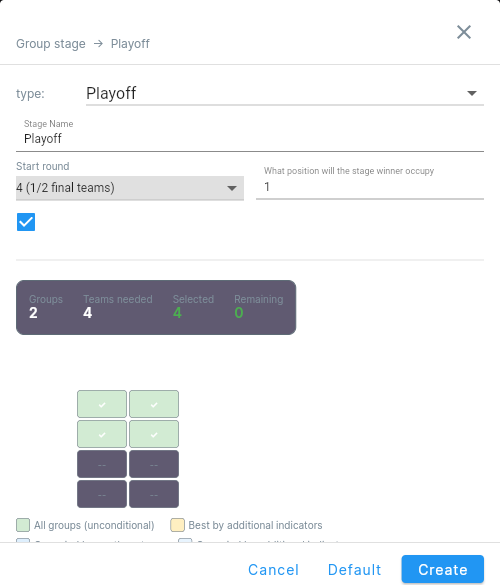
You can also pick places «by additional indicators» — the three best runners-up across all groups, say, instead of exactly one runner-up per group. Which bracket slot a team actually lands in is decided by the builder itself — that part isn't chosen by hand.
Stage settings
Each stage has its own settings, separate from the tournament's: format, dates, city, number of rounds and groups, how many teams play. For a group stage, the same screen also has the tie-break rules for equal points.
Example: the same 8 teams, but by hand
To see that the wizard and manual mode build the same thing, let's recreate the structure from the previous article by hand: 2 groups of 4 teams → a main bracket for places 1-4 and a consolation bracket for places 5-8 — you can check the result against the diagram in «Groups + Cup and Plate playoffs».
The teams are already added to the tournament, and the structure isn't set up yet. If matches or a schedule already exist for the tournament, check first whether it's safe to change the team count and advancement rules — the builder may not allow it until the existing matches are removed.
-
Create a group stage for 8 teams, 2 groups.
Result: one stage with two empty groups appears in the builder.
-
Assign teams to groups A and B — 4 in each.
Result: the counter for each group shows «4 of 4 selected», the groups are full.
-
From this stage create the main playoff for 4 teams: mark 1st and 2nd place from each group — these are tournament places 1-4.
Result: a second stage appears on the diagram — a 4-team bracket connected to the group stage.
-
From the same group stage create a second playoff for 4 teams: mark 3rd and 4th place from each group — these are tournament places 5-8.
Result: another 4-team bracket appears on the diagram — the finished structure matches the diagram from the previous article.
A final from two group stages
The scenario from the start of this article — one shared final built from two independent groups — uses the same advancement-rules mechanism, with one addition. If the stage you're creating is bigger than the number of teams the first source can supply — the final is set for 8 teams but the group only provides 4, say — a Draw from another stage button appears next to the rules. It adds a second, separate source of teams into the same advancement rules: you set up the transition from the first group as usual, then use this button to bring in a second group and its places — and one final stage ends up with teams from two independent group stages at once.
Deleting a stage takes all of its matches with it
Deleting a stage deletes everything inside it: not just the empty slots but matches already played, with their scores, events and line-ups. The app does ask for confirmation, but it is the ordinary «delete?» dialog — it says nothing about the matches inside the stage, and what is deleted cannot be brought back.
The usual route into this: the organizer wants a third-place match in the playoff, or a different starting round — and instead of editing the settings, deletes the stage and creates it again. After a few of those the bracket looks empty, because the semi-finals that had been played went away with the stage.
One more side effect: after re-creating, the bracket can be left with a spare match that has no teams — it has a date and a field but empty slots. It has to be deleted once by hand; it will not go away on its own.
What to do instead: open the stage settings and change what you need there — the number of teams, the starting round, whether there is a third-place match. If the stage really does have to be re-created, write the played scores down first: you will be re-entering them by hand.
Troubleshooting
The stage or advancement rules won't save
The builder counts «needed N, selected M» and won't let you save until the place distribution across groups matches how many teams should land on the next stage.
A stage shows it has no advancement rules
There's a break somewhere in the chain — a stage that has no configuration for where its teams come from.
The first stage is a playoff and has no teams
Manual team assignment only works for a group stage — see above.
Next steps
If the wizard can build your structure in one click, that's faster and simpler — that's the subject of «Groups + Cup and Plate playoffs».
Schedules and matches are the subject of a future article that doesn't exist yet.
Still stuck? Write to support@nsgsoft.me and we will help you sort it out.