

Every match row has a camera button on the left. Yellow, with a camera and a “+” — the broadcast is running, the screen is connected, send your layer. Light purple, with a crossed-out camera — there is no broadcast on this match right now. But a crossed-out camera does not mean something is broken: most often you are simply looking at a day other than today. Details in “What the icons mean”.
Streaming from a phone with one button
There are two ways to go live. The first and simplest is to film with the phone straight from the app: FUTBOLISTA creates the live stream on YouTube, sends the camera picture there and overlays the scoreboard and event banners. No stream keys, no OBS, no separate computer. The second is an external camera or streaming software (OBS and the like) with a stream key; it is covered below, in the sections about screens.
-
Connect the platform once. Organisation card → menu → Streaming platforms → Authorize next to YouTube. This can be done by the organisation's administrator or a staff member with the Broadcasts right.
-
At the match, open the match card menu and choose Start match broadcast. The camera screen opens.
-
Tap Start broadcast. The stream is created on the connected platform; the score and clock on the scoreboard update by themselves as events are entered in the match report.
Picture quality
On phones you can choose 480p, 720p and 1080p at 30 frames per second. Not every phone handles 1080p: if the device has not been tested in this mode, or struggled last time, the app warns you and suggests 720p. If the phone starts dropping frames during the stream, the resolution is lowered automatically. For most youth and amateur tournaments 720p is a sensible choice.
Recording on the phone and uploading later
The Save to device switch records the match to the phone's memory — alongside the live stream, or without going live at all when the internet at the venue is poor. The recording then goes to the server:
- automatically, right after you stop, if Auto-upload after recording stops is on;
- manually, if auto-upload is off: the Broadcast archive has Upload all and a per-recording queue. It is handy to upload in the evening over Wi-Fi rather than over mobile data at the pitch.
If the stream drops
-
Do not minimise the app or lock the phone during the stream. On some phones the camera stops in the background and the stream is interrupted. Turn off auto-lock for the match.
-
Check the app version — it is shown in the profile header, next to the word "Profile". If it is old, update from the app store: streaming fixes ship often.
-
Reconnect YouTube if the authorisation has expired — you will get a "Video token revoked" notification. Organisation card → Streaming platforms → Authorize again.
-
Create the stream again if the platform has already ended it (for example after a long loss of connection): stop the broadcast and tap Start match broadcast again.
-
Send the diagnostic report. The app keeps a report for every broadcast — Reports history → Share report. It contains no passwords or tokens; send it to support@nsgsoft.me or via Feedback in the profile, with the match and the time it dropped.
Recommended equipment
| Situation | What to prepare |
|---|---|
| One pitch, streaming from a phone | A phone on a tripod, high above the pitch; 720p. Weak, budget Android phones often cannot handle 1080p |
| Heat, sun, a long match day | Phones overheat and drop quality: keep them in the shade, bring a power bank and a spare phone |
| Weak mobile internet | Record to the device and upload later — see above |
| Several pitches at once | A laptop and Wi-Fi at the venue, one screen per pitch — see "One broadcast per field" |
Next — the second way: external cameras, OBS and screens for the scoreboard.
Screen, subscription, layer
Three words you will need from here on. They sound similar but mean completely different things.
| What | It is | Who creates it |
|---|---|---|
| Screen | A record in the app: a name and a code. The code builds the link you open on the display device itself | The organiser, once |
| Subscription | The pairing “this screen is showing this match”. It lives as long as the broadcast does | The server, the moment you pick a screen for a match |
| Layer | A picture over the video: the broadcast cover, the score, an event banner, sponsors | The organiser, in advance and during the match |
The key consequence: a screen never picks its own match. The device only opens the link and waits for instructions — what it shows is the organiser's decision, and that decision is the subscription.
Registering a screen
Everything starts in the organiser menu: ⋮ → Broadcast management. At the top of the page there is the Connected Screens block; at the bottom, the Screen management and All links buttons.
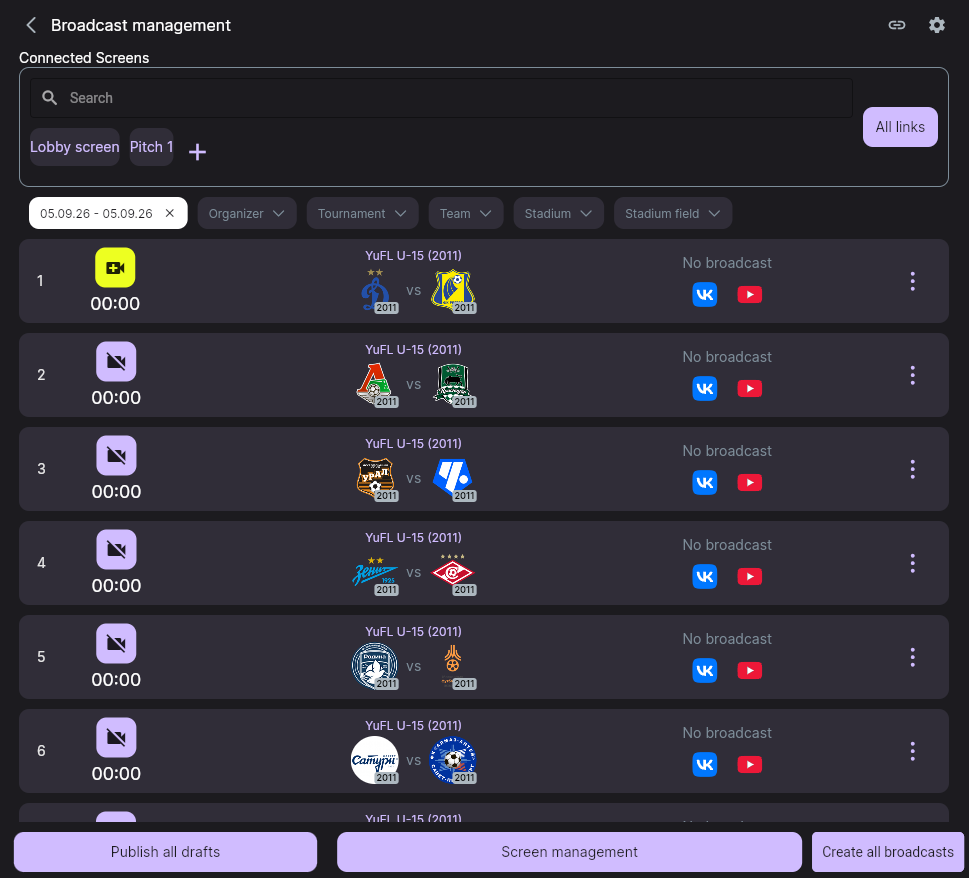
-
In the Connected Screens block press +. The Screen settings card opens.
-
Fill in the Screen name — it is the only thing you will see in the lists. Name it after the place: “Pitch 1”, “Lobby screen”, “Projector”.
-
The Screen code is filled in by the app as soon as you open the card and cannot be edited — the field carries a padlock. The ready-made link is shown under the fields; press it to copy.
-
Press Save at the bottom — the screen appears in the connected screens block.
-
Open the copied link on the display device itself — a TV, a laptop, a set-top box. From that moment the device is the screen.
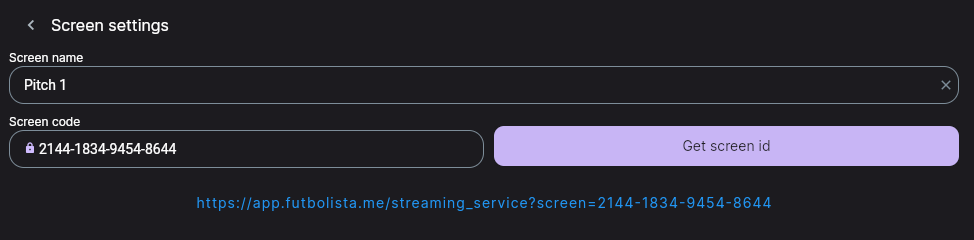
The screen record and its link are not tied to a match: today this device shows one match, tomorrow another. There is no need to register a new screen for every game — and you shouldn't, or the list becomes unreadable fast.
Going live on a match
Every match row has a camera button on the left. Pressing it opens the Screen selection dialog — tiles for all your screens with a search box above them. Pick the screen this match will run on.

Once you pick one, the server creates the subscription and the device starts showing that match. The button in the match row changes — more on that next.
What the icons mean
This is the most frequent support question, so let's take it in order. The button sits on the left of the match row — on the “Broadcast management” page, and nowhere else. The layers page has no such icons; it has its own pair (see below).
Read the button in two parts: the colour says whether a screen is assigned to the match, and the icon inside says whether it is alive.
| How it looks | What it means | What to do |
|---|---|---|
| Yellow, camera with a “+” | The broadcast on this match is running, the screen is connected | Send the layer — it will be seen |
| Yellow, camera crossed out | A screen is assigned to the match, but the app does not treat the broadcast as live | The reasons are below |
| Light purple, camera crossed out | No broadcast was ever started on this match | Press it and pick a screen |
| Spinning ball | The app is waiting for the server after your press | Wait a second or two |
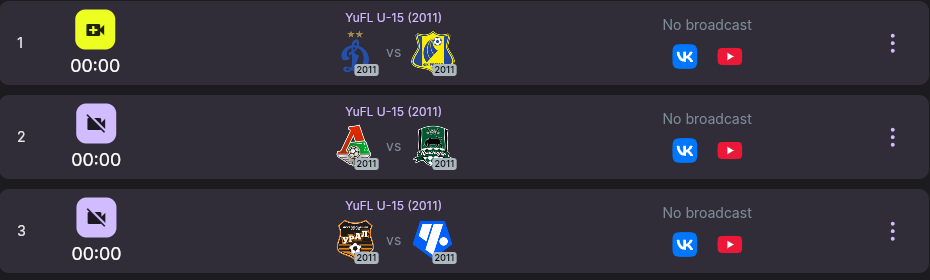
Next to the streaming platform icons in the match row you may see the label No broadcast. It means only one thing: no external platform link is attached to the match. It has nothing to do with the broadcast on your screen and stays there even while the broadcast is running — as the screenshot above shows. Read the button on the left, not this label.
How the app knows the screen is alive
While a screen is showing a match it tells the server “I'm here” once a minute. If nothing arrives for more than five minutes, the screen counts as gone quiet and the subscription stops being shown as active.
Five minutes against a message every minute is deliberate headroom: three misses in a row are forgiven. A stadium Wi-Fi blink will not drop the screen off air mid-match, yet a stuck mark will not hang around for hours either.
Older versions of the app on the display device don't send this signal at all. Such a screen shows the match perfectly well but looks dead in your list. So if the picture is there and the camera is crossed out, check the app version on the display device itself, not the broadcast. While no match is assigned to it, the screen shows its connection code with the version printed underneath.
The icon goes out for more than silence. A match with the status Over or Cancelled, and any match that started more than six hours ago, is treated as played out — and no broadcast mark is shown for it even if the screen is connected. So a list that goes dark all at once usually means “I'm not looking at today”. Check the date filter before hunting for a fault.
Where to check the screen itself
The button in the row is about the broadcast of one match. For the screen as such there is a separate page: the Screen management button at the bottom of “Broadcast management”. Every screen there shows its name, its code, a last-activity line and a coloured dot on the right: green — the subscription is active, red — it isn't. A screen with a match assigned has the teams written after an arrow next to its name, so you can see at a glance what it is showing.
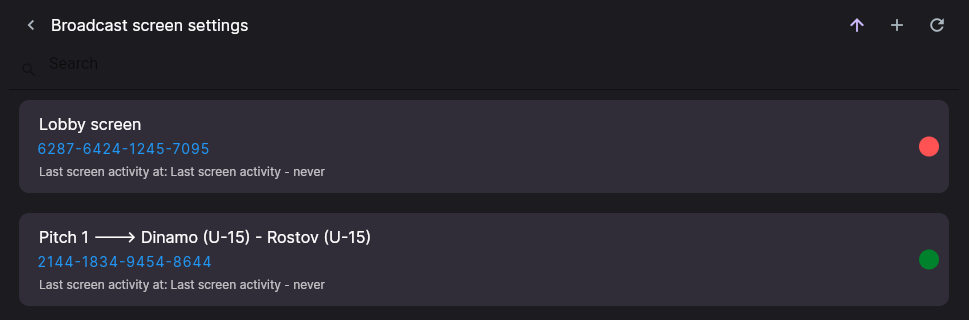
The Last screen activity at line is on the page, but there is no date in it — every screen reads “never”, including one that is working right now. The field is still being finished on the server; for now, go by the coloured dot.
Layers: what to show on air
A layer is a picture over the video. Layers are prepared on a separate page: the match ⋮ menu → Layers for installation.
The page is built from the events of the match: a row for every change of score and a row for every event — a goal, a card, the start and the end of the match. If the match has its covers built, a Cover of the broadcast row is added at the top and a Review cover row at the bottom. Each row has two icons on the right:
| Icon | What it does |
|---|---|
| Floppy disk | Renders the layer and saves it |
| Eye | The same, but shows a preview first |
Layers that are already prepared are highlighted by the icon colour, so you can see what is done and what isn't. Two buttons sit at the bottom of the page: Match score — a separate score layer, and Download all — export every layer at once.
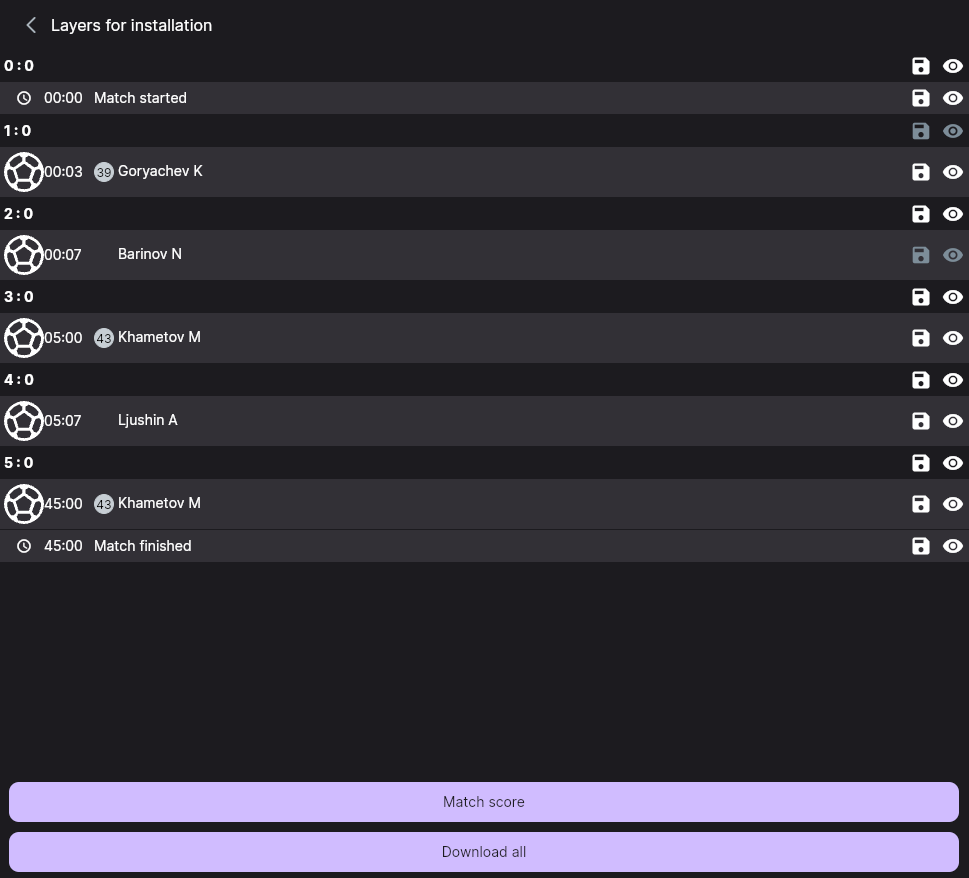
If the broadcast cover was built before you fixed the line-ups, the crests or the tournament name, the same match ⋮ menu has Recreate the broadcast cover. It builds the cover again from the current data. The item only appears for matches that have video attached — on the rest it is not in the menu.
The broadcast console
What is shown during the match is driven not from the layers page but from the match itself — on the Broadcast tab. Every button on it sends a command to the screen immediately.
There is no Broadcast tab if you open the match from the general match list. It appears only when you enter the match from the “Broadcast management” page — by pressing the middle of the row, where the tournament and the teams are written. Can't find the tab? Go back and open the match from there.
| Buttons | What they do |
|---|---|
| Start playlist · Stop playlist | Starts and stops the prepared filler clip |
| Score at the top · Score at the bottom | Shows the score bar at the top or the bottom of the frame |
| Hide score | Removes the score bar |
| Show sponsors · Hide sponsors | Turns the sponsor banner on and off |
| Hide all | Clears every banner from the screen at once |
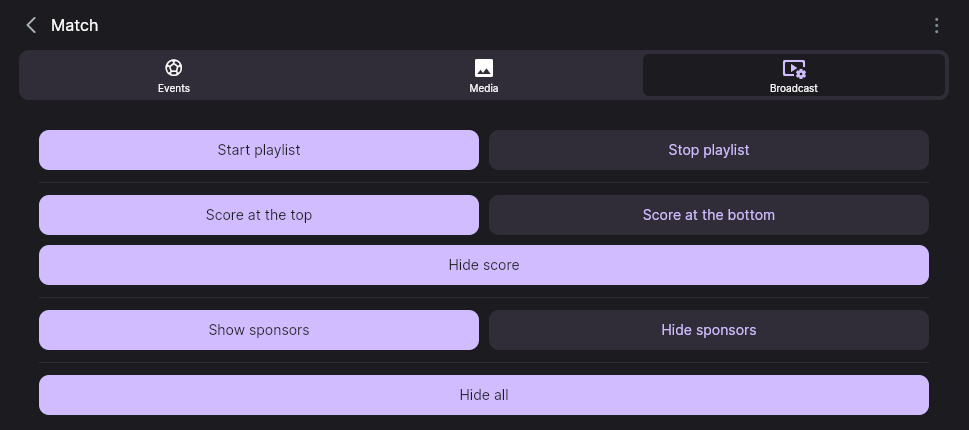
The buttons press and work whether the screen is connected or not — the command simply goes nowhere. If you press Score at the top and nothing changes on the screen, look first at the broadcast button in that match's row.
Troubleshooting
The screen is showing the match but the camera is crossed out
Most likely the display device runs an older version of the app, which doesn't send the “I'm here” signal. The other option is that the match already counts as played out (over, cancelled, or started more than six hours ago).
Every match went dark at once
Check the date filter. Yesterday's day will show no broadcast marks on any match — that is normal.
The layer was sent but isn't on the screen
Check by the button whether the broadcast on this match is running and whether the right screen is picked. The console sends the command even when there is nobody to show it to.
The match has no “Broadcast” tab
The match was opened from the general list. Enter it from the Broadcast management page by pressing the middle of the row.
The screen is open but shows a code instead of the match
That is the normal waiting state: the device has opened the link but no match has been assigned to it yet. Assign one with the camera button on the match you need.
There are too many screens to find the right one
The Connected Screens block, the Screen selection dialog and the screen management page all have a search box that filters by name.
I need to hand out the links to every screen
The All links button next to the screens block opens a list with every link.
Next steps
The events that the score and banner layers are built from are entered during the match — see “Running a match”.
Didn't work out? Write to support@nsgsoft.me — we'll help you sort it out.