

A review is built out of additional events. You mark a moment on the video — a pass, a dribble, a tackle, a save — and it becomes a row in a list. Tapping that row takes the video straight to that moment, and every episode has a length of its own: how many seconds to show before it and how many after.
Tag once, and at the review you no longer hunt for episodes — you open them from a list.
The idea
An ordinary review gets stuck on scrubbing: the coach remembers there was «a hole in midfield somewhere around the twentieth minute» and spends three minutes looking for it while the team gets bored. Tagging removes that: everything you want to show is marked in advance and opens with one tap.
A pleasant side effect: the tags stay. A month later you can come back to the same match and show the same episodes without searching again.
What you need to start
The only requirement is that the match has video: a broadcast or an uploaded recording. With no video there is nothing to tag.
The video itself can be anything — a parent's phone, a camera on a tripod or a broadcast. All that matters is that it is attached to the match in the app.
The review screen
Open the match and start its video — the app switches to the player screen. Under the video is a list of events with three tabs:
| Tab | What is in it |
|---|---|
| Main | What happened in the match according to the protocol: goals, cards, substitutions, the start and end of periods |
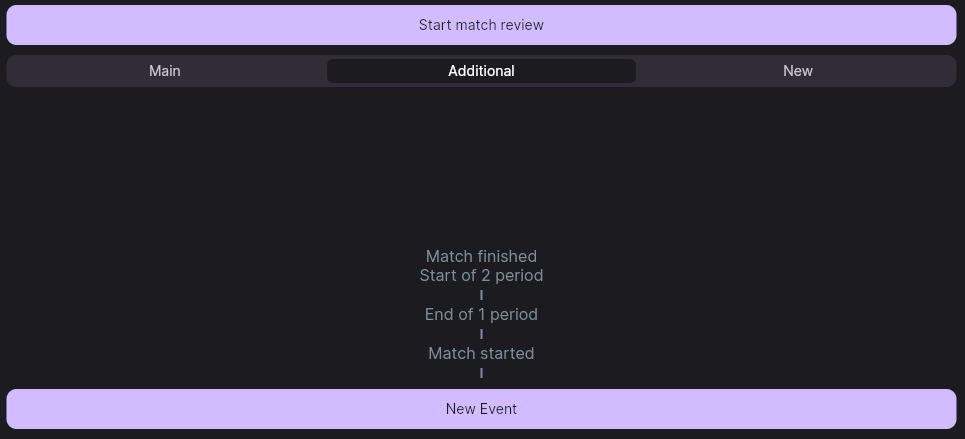
| Additional | Your tags — the whole point of the exercise |
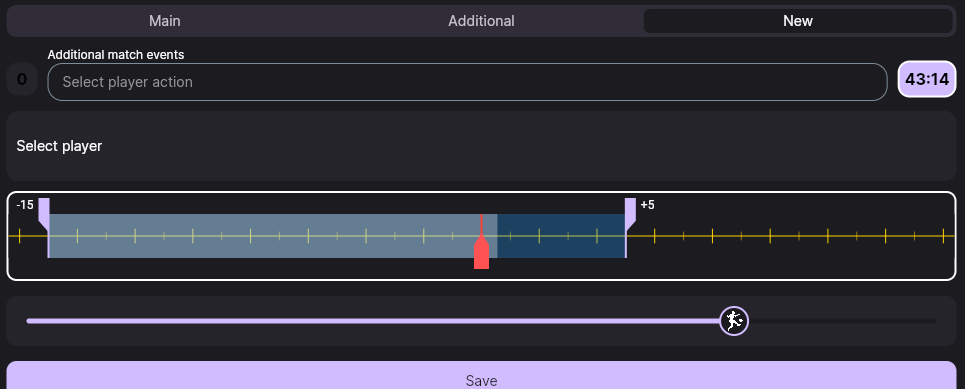
| New | Not a list but a quick tagging screen: it creates a new event straight away and offers you the action, the player, the moment and the video segment. The number beside it is how many episodes you have added in this session |
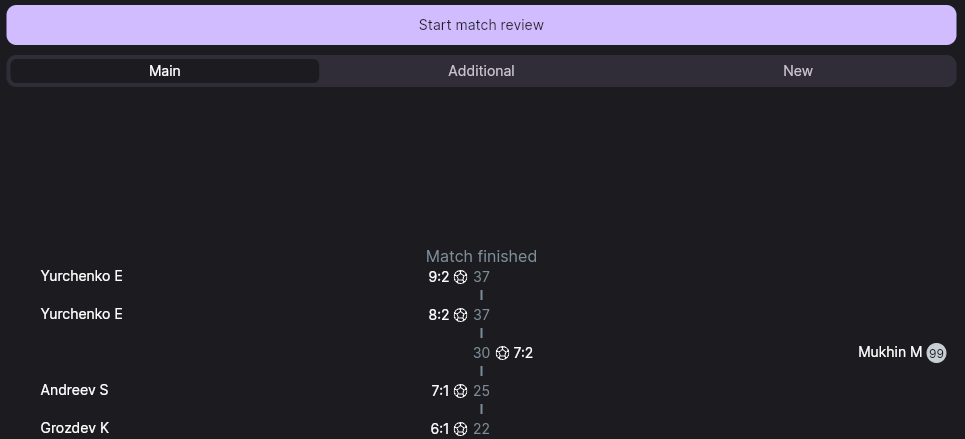
The tagging button appears when the Additional tab is selected. On Main it is not there — that is the first thing people trip over.
The New tab works differently from the other two: instead of showing a list it opens the creation of the next event right away. Pick the action and the player, mark the moment, drag the edges of the segment on the video scale — and save. The screen is then immediately ready for the next episode, with no trip back to the list.
This is the fastest way to tag a match end to end: the counter beside the tab name shows how many episodes you have added in this session and resets next time you come in.
Tagging an action
- Watch up to the moment you want and pause the video.
- Switch to the Additional tab — a New Event button appears below the list. Tap it.
- Pick the player — or skip that if you are marking a team action.
- In the Select player action field choose the type. The list is fixed: pass, ball control, tackle, shot on target, save, dribble, shot at goal, corner, nice moment, offside.
- The time is taken from the current position of the video — it is shown next to it and can be corrected if needed. Save.
The event appears in the list. You can also tag on the fly without pausing: the time will be taken at the moment you tap, and can be adjusted afterwards.
The player in an additional event is optional, and in practice it is rarely filled in: in live data fewer than one event in twenty has a player attached. Without a player the episode is tied to the team only — finding «all of Petrov's dribbles» from such tags is no longer possible. If you are planning individual reviews, agree on this with whoever is tagging, in advance.
Jumps and clips
Now for the part all the tagging was for.
Tapping an event in the list takes the video to that moment. That is how a review is run: open the list, tap an episode, discuss it, tap the next one. No scrubbing by eye.
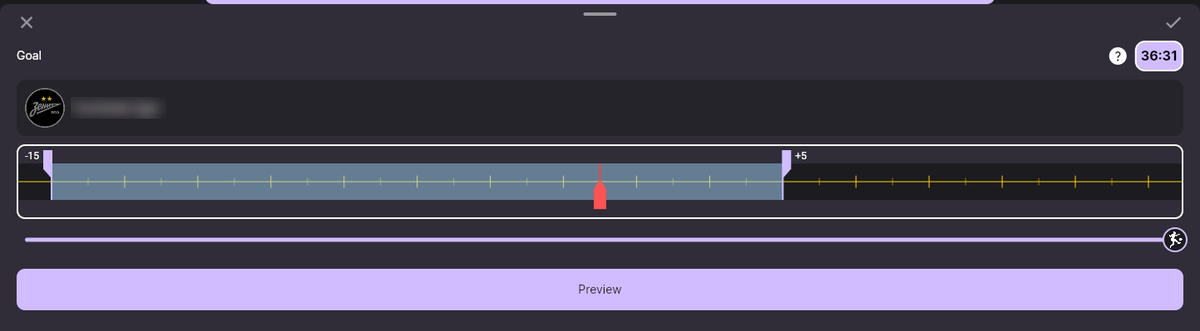
A long press on an event opens the clip settings: how many seconds to show before the moment and how many after. This matters more than it sounds: a goal is interesting together with the attack that set it up, and a bad mistake together with the ten seconds that led to it. By default the app takes 15 seconds before and 5 after (some event types have their own values).
The automatic match review
The Start match review button plays all the key episodes one after another, each as its own clip. It is stopped with Stop Match Review.
The review takes in goals, penalties, cards, own goals, substitutions, the start and end of periods — and your additional events. In other words, the better a match is tagged, the more substantial the automatic review becomes.
Before a tactical session the coach tags 10–15 episodes and starts the review: the team watches a condensed version of the match in a few minutes instead of an hour of footage. After that — point by point down the list, to the moments that need discussing in detail.
Scenario 1: the coach tags
The most common way of working.
- The evening before. The coach opens the match video and calmly, with pauses, tags what he wants to show: two defensive breakdowns, three good escapes from the press, the episode with the turnover in midfield. For each he sets the clip length so the build-up is visible.
- At the session. He opens the same match, the Additional tab, and runs the review down the list: tap — the video is there, discuss — tap the next one.
- Afterwards. The tags do not go anywhere: they can be shown to whoever missed the session, or revisited before the next game against the same opponent.
Scenario 2: the players tag
The other way is to hand the tagging to the players themselves: «watch your match and mark your own actions, the good ones and the bad ones, we'll go through them on Thursday». Here is how that works, and with what caveats.
What works. Anyone who can open the match video tags it exactly as the coach does, including through the quick New tab. The tagging is shared: what a player marked at home the coach sees in the Additional list alongside his own episodes. Every event stores its author, so who marked what is recorded in the data.
The counter on the New tab counts your own episodes for the current session — it is not a feed of other people's additions and not a way to check who has done the homework. Checking has to be done through the Additional list itself: there is no filter by author in the app, and no separate «tagging layers» per person either.
Hence the practical conclusion: attaching the event to a player becomes essential. It is the only thing that shows whose episode it is at the review, and the only thing that lets you collect one footballer's actions together.
There is no «good / bad» marker. The list of action types is fixed and has no success flag in it. A way around: agree that players write their verdict in the event's Comment — the field is there on the event card, and at the review it shows what the player himself thought of the episode.
Tagging is not split by author. Events from everyone who tagged sit in one list: no «Petrov's layer», no filter by author in the interface.
How to set the task so this works. Be specific: «mark five of your own actions — three you consider good and two bad; make sure you pick yourself as the player and write one word in the comment saying whether it was good or not». Then by Thursday you have a list showing the episode, the player and his own verdict — and the review runs by tapping down the list.
A player who has rewatched his own match and called an action bad arrives at the review with an opinion already formed. The conversation turns from «the coach points out mistakes» into «let's see whether our verdicts match» — with children and teenagers that works noticeably better.
Worth knowing in advance
- The tagging button only lives on the «Additional» tab. If you cannot find it, you are most likely on «Main».
- The player is optional, but without him there is no individual review. See the warning above.
- Clip length is set per event — with a long press. The default is 15 seconds before and 5 after.
- Tags are tied to the video. If the recording of the match is replaced with another one, the event times will point at the wrong places.
Troubleshooting
There is no «New Event» button
Check that the Additional tab is open: the button is not on the other tabs.
I tap an event and the video does not land on the right moment
Then the event has the wrong time. Open the event card and correct it — the time of the event and the time in the video are different things, and when tagging on the fly the first one easily drifts by a couple of seconds.
The episode is too short
Long-press the event and increase the seconds before and after. The defaults are 15 and 5, which is often too little to see how an attack was built.
I cannot tell who tagged this event
The author is stored with the event, but there is no filter by author in the app. The practical way round is to attach events to players and agree on comments.
I tagged the wrong team
An event is created by a particular team's button. If you got it wrong, delete the event and create it again with the right button.
How a match gets into the app and who runs it is in «Running a match». The coach's path as a whole is in the «Coach's guide».
Still stuck? Write to support@nsgsoft.me and we will help you sort it out.